Churn
Who started, who left, who was suspended or restored each month, and the reasons customers gave for leaving.
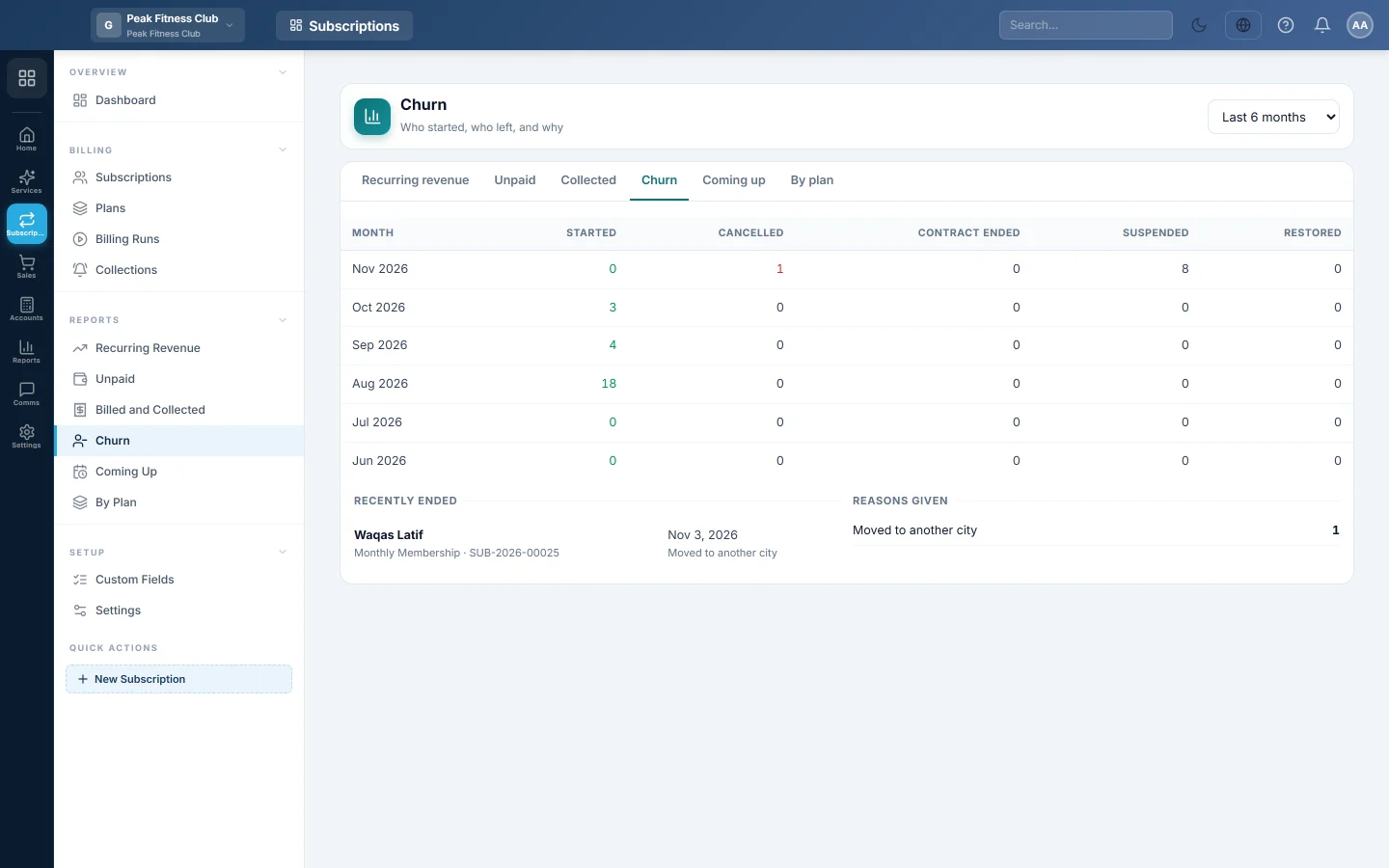
The Churn report shows who started, who left and why. Use it to spot a month with many cancellations and the reasons behind them.
Before you begin
- Type a Reason when you cancel a subscription, so this report can group them. See Subscriptions.
- Your role needs permission to view Subscriptions reports. See Users & Roles.
Where to find it
Open Subscriptions → Reports → Churn. The tabs at the top switch between all six Subscriptions reports.
Run the report
- Pick Last 6 months, Last 12 months or Last 24 months.
Read the report
The table has one row per month:
| Column | Meaning |
|---|---|
| Started | New subscriptions with a start date in the month. |
| Cancelled | Subscriptions cancelled in the month. |
| Contract ended | Subscriptions that reached the end of their contract. |
| Suspended | Subscriptions switched off, usually for non-payment. |
| Restored | Subscriptions reactivated after they had ended. |
Below the table:
- Recently ended lists the customers who left in the period, with the plan, the date and their reason. Click one to open the subscription.
- Reasons given counts each reason. No reason given counts cancellations without one.
Common questions
Why does the branch filter not change this report? This report always covers the whole company.
Is a suspended customer counted as lost? They appear under Suspended, not Cancelled. They are not in Recently ended unless the subscription was later cancelled.
Where do the reasons come from? From the Reason typed in the Cancel subscription window. Use the same words each time, such as "Moving away", so they group together.
شكرًا لك. إذا كنت لا تزال بحاجة إلى مساعدة، راسلنا على info@eloerp.net.