Settings
Pick your industry preset (salon, barber, spa or phone and computer repair) to seed services, prices and vocabulary, and set the booking desk's slot size, hours, overbooking and walk-in token prefix, and switch on online booking.
Services Settings is where a service business starts. Pick your industry preset to fill the catalogue with priced services, then set how the booking desk works.
Before you begin
- The Services module must be switched on for your company by your service provider. Until it is installed, the page says Almost there.
- You need the Manage Services Settings / Industry Preset permission.
Where to find it
Open Services → Setup → Settings.
Apply an industry preset
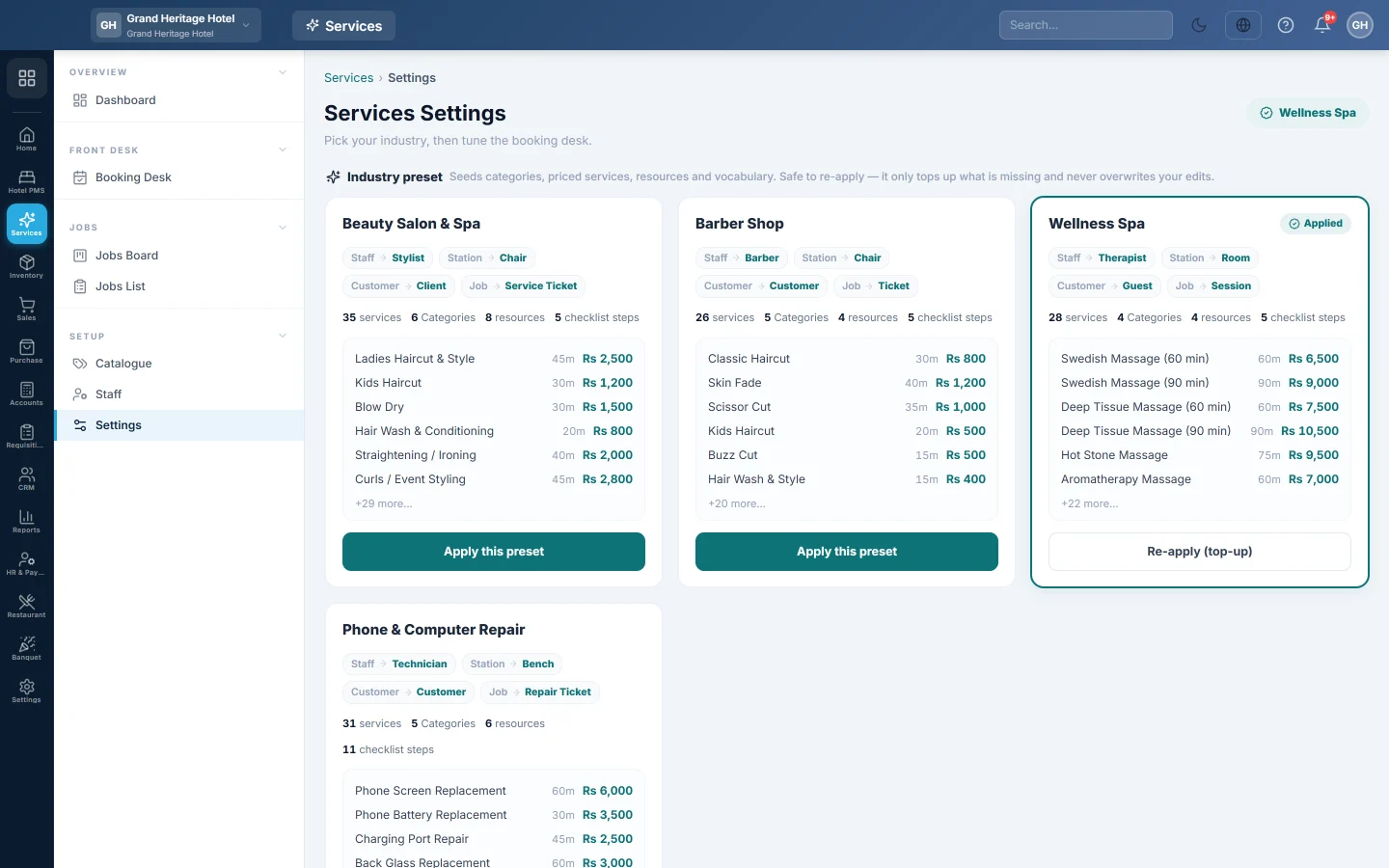
Each card shows a preset: Beauty Salon & Spa, Barber Shop, Wellness Spa or Phone & Computer Repair. It lists how the screens will name things, how many services, categories and resources it adds, and sample services with prices.
- Find the preset closest to your business.
- Click Apply this preset.
- Read the message and click Apply.
EloERP adds the categories, the services with typical prices, the resources (chairs, rooms or benches), the intake form and the checklist. It also renames the screens: a salon sees Stylist, Client and Service Ticket instead of Staff, Customer and Job.
Applying never deletes or overwrites anything. Re-apply (top-up) adds only what is missing; prices, names and durations you edited stay as they are.
Set the booking desk preferences
Under Booking desk preferences:
- Slot size: the grid interval on the desk, 15, 20 or 30 min.
- Opening hours: the desk grid runs from the opening to the closing time.
- Allow overbooking: lets the desk book a second appointment in a busy slot on purpose. Off, a clash is refused with the staff member's name and time.
- Walk-in token prefix: walk-in tokens print as the prefix and a number, for example W-17.
A bar appears at the bottom when you change something. Click Save preferences, or Discard to undo.
Switch on online booking
Under Online booking, turn on Take bookings online to give your customers a booking page of your own. Set the rules, the hours you take online bookings and the Services offered online, then click Save online booking. This section saves on its own, not with the bar at the bottom.
The page needs WhatsApp or SMS for the customer's code, and at least one bookable person. When online requests are waiting, the section says how many. See Take bookings online with your booking page for every setting.
Common questions
Can I switch from one preset to another? Yes. Applying a second preset adds its services and switches the screen names. The services you already have stay.
Does the side menu change too? No. The side menu keeps Staff, Jobs Board and so on. The page headings and buttons use your preset's words.
Where do I add my team? On Staff.
谢谢。 如果仍需帮助,请发邮件至 info@eloerp.net。