Jobs List
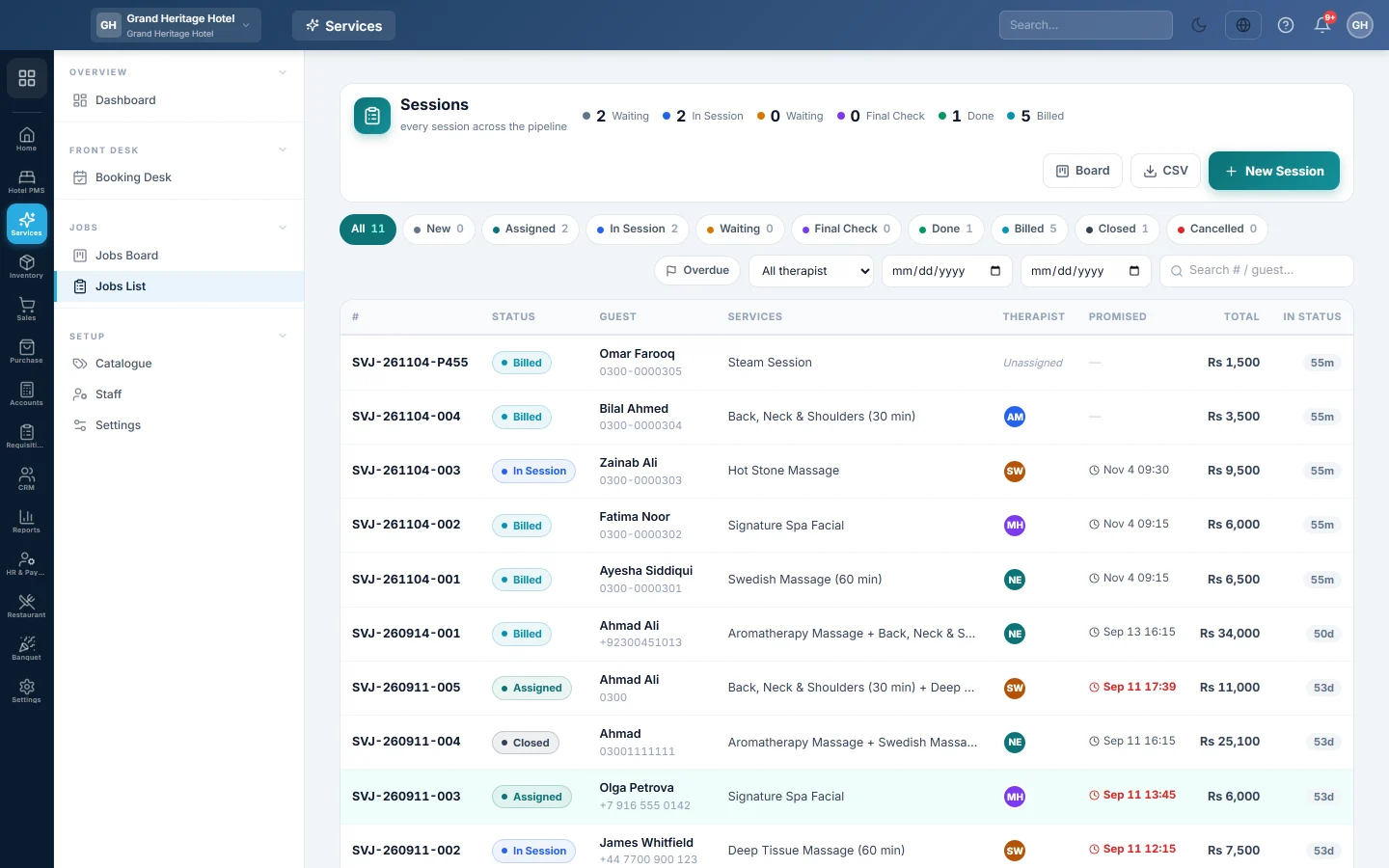
Every service job in one table with its status, services, staff, promised time and total, with filters for status, staff, dates and overdue work, and the form to start a new job.
Jobs List shows every job in a table: its status, client, services, staff, promised time and total. Use it to find a job, see what is overdue, or start a job without a booking.
Before you begin
- You need the View Service Jobs permission. Starting a job needs Create Service Jobs.
- Your services are on Catalogue.
Where to find it
Open Services → Jobs → Jobs List.
Find a job
- Click a status chip to show only jobs in that status, or All.
- Click Overdue for jobs past their promised time and still in play.
- Pick a staff member, a from date and a to date.
- Type a job number, client name or phone in the search box.
- Click a row to open the job card.
CSV downloads the rows on screen. Board opens the Jobs Board.
Start a job without a booking
Use this for work left with you, such as a phone for repair.
- Click New Job (or New Repair Ticket, and so on).
- Search the client by name or phone, or click Quick-register new Customer.
- Optionally tap the Services. You can also add lines later on the job card.
- Pick a staff member, or leave Assign later.
- Choose the Priority and, if you promised a time, Promised by.
- Type any Notes.
- Click Create Job.
The job card opens. Fill in the intake form, such as the device and its fault. See Complete a job and collect payment.
Common questions
Where do jobs from bookings come from? Checking a client in on the Booking Desk creates their job.
What does In status show? How long the job has been in its current status.
Can I delete a job? No. Cancel it from its job card with a reason. Cancelled jobs stay in the list under their status chip.
谢谢。 如果仍需帮助,请发邮件至 info@eloerp.net。