Booking Desk
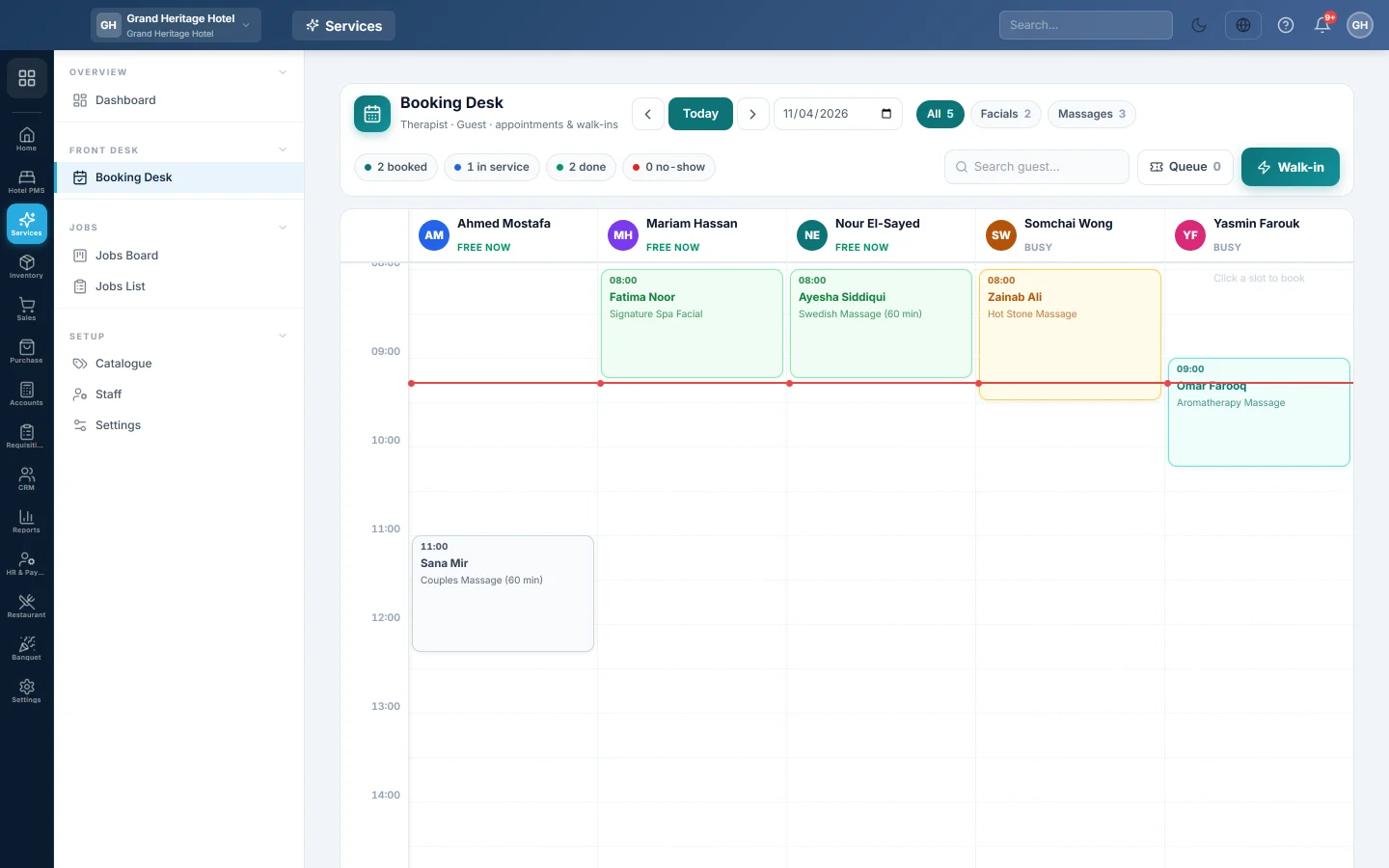
The front desk's day grid, one column per staff member, for booking appointments, issuing walk-in tokens, checking clients in, and finishing and billing their service.
The Booking Desk is the front desk's day. Each bookable staff member is a column, with their appointments on a time grid. Walk-ins get a token and wait in the queue. Checking a client in opens their job.
Before you begin
- Your services are on Catalogue and your team on Staff, switched to bookable.
- You need Create Bookings / Walk-ins to book. Rescheduling, no-shows and cancelling need Manage Bookings.
Where to find it
Open Services → Front Desk → Booking Desk.
Move around the day
- Use the arrows beside the date to go to the previous or next day. Click the date to come back to today.
- The chips above the grid filter by role and count what is booked, in service, done and no-show.
- When online requests are waiting, an amber online requests chip comes first. Click it to go to the day of the earliest one.
- Type in the search box to find a client.
Book an appointment
- Click an empty slot in the staff member's column.
- Search the client by name or phone, or click Quick-register new Customer and type the Full name and Phone.
- Tap one or more Services. The end time and the price show below.
- Click Book.
A booking that clashes with another one for the same person is refused, unless Allow overbooking is on in Settings.
Take a walk-in
- Click Walk-in.
- Pick or quick-register the client.
- Tap the Services.
- Pick a staff member, or leave Any / later.
- Click Issue token.
Click Queue to see waiting tokens. On a token, click Assign and pick a free staff member, or Check in.
Work a booking
Click a booking on the grid to open its card:
- Confirm: the client confirmed the appointment.
- Check in → Job: the client has arrived. This opens their job card. See Complete a job and collect payment.
- Reschedule: pick the New time & Staff and click Save new time. You can also drag the booking to another slot.
- No-show or Cancel: type an optional reason and confirm.
- Start service, then Complete when the work is done. Completing also completes the job.
- Bill & collect on a completed booking: take payment in one window.
Answer an online request
Bookings made on your booking page carry an Online tag. When Confirm each booking first is on in Settings, they arrive as requests: a dashed amber block tagged Online request, with the status Requested. A request holds its time.
- Click the request. The card says it is waiting for your answer.
- Click Confirm booking to keep the time, or Reschedule to move it first.
- To refuse it, click Decline, type an optional Reason for declining, and click Decline request. The time is free again.
Confirming fires your Booking confirmed message rule; declining fires Booking cancelled. A request cannot be checked in until it is confirmed.
Bill a completed booking
- Click the completed booking and click Bill & collect.
- Check the lines and the Discount, and pick the tax under VAT if it applies.
- Pick the Payment method and type the Amount received. The Change to give shows below.
- Click Bill & collect. If the client pays less, the rest stays due on their account.
- Click Print receipt if they want one, then Done.
Common questions
A staff member has no column. They are paused or inactive on Staff.
The booking was refused: already booked. The person has another booking in that window. Pick another time or staff member.
Why can I not cancel a checked-in booking? Only booked or confirmed bookings can be cancelled. Cancel the job on its job card instead.
A booking appeared that nobody at the desk made. It came from your online booking page and shows the Online tag. See Take bookings online with your booking page.
Hotel guests: can a treatment go on the room bill? Yes, when the hotel module is on. Click Charge to room and pick the stay.
Obrigado. Se ainda precisar de ajuda, escreva para info@eloerp.net.