Home Collection
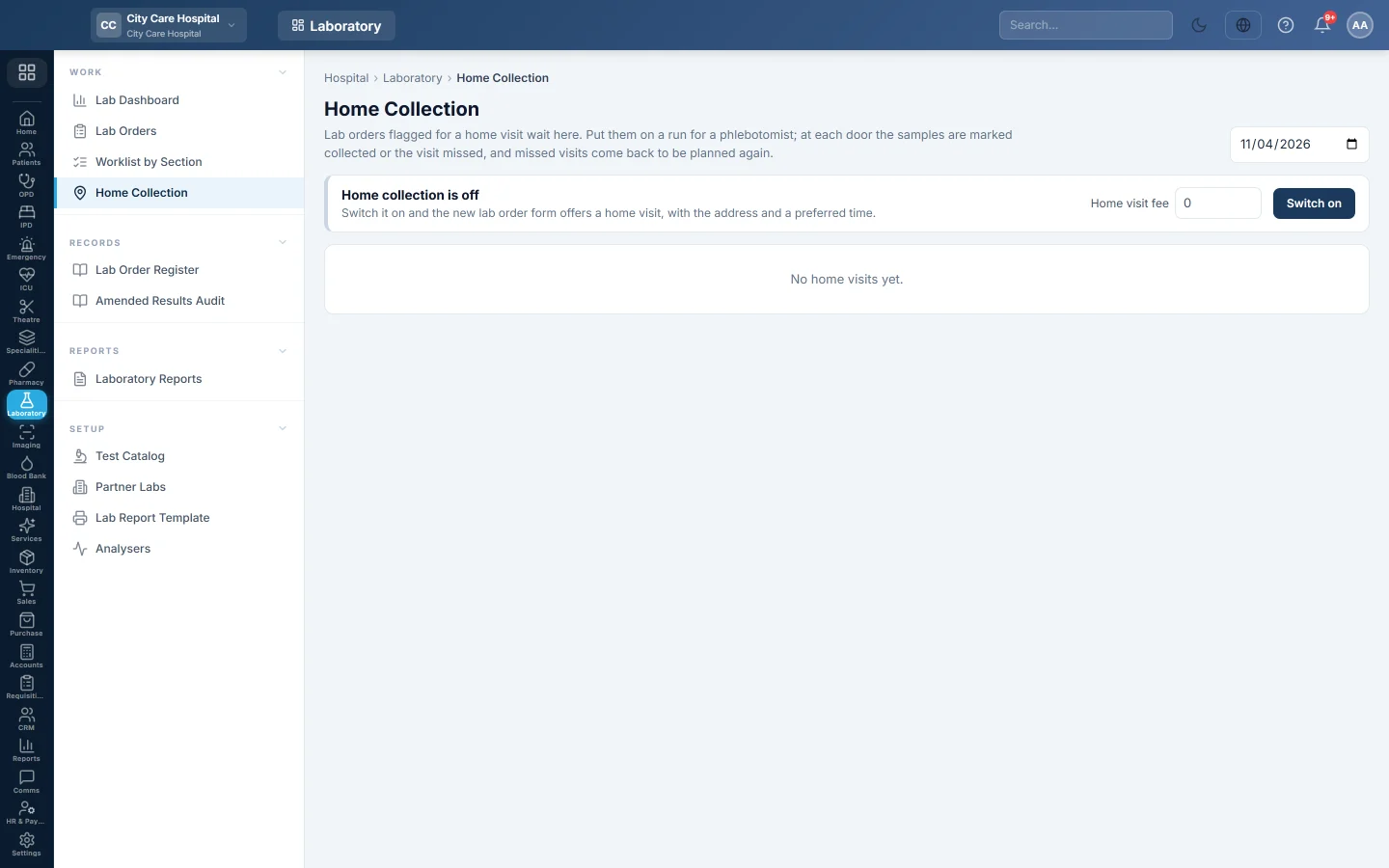
Switch on home sample collection, plan daily runs for phlebotomists, mark each visit collected or missed and print the run sheet.
Home Collection is for labs that send a phlebotomist to the patient's home. Orders flagged for a home visit wait here until you put them on a run.
Before you begin
- Switching the service on and setting the fee needs Manage Lab Orders / Workflow.
- Planning runs and marking visits needs Collect Samples / Phlebotomy or Manage Lab Orders / Workflow.
Where to find it
Open Laboratory → Work → Home Collection.
Switch home collection on
- Type the Home visit fee in Rs. Leave it at 0 for a free visit.
- Click Switch on.
The New Lab Order form now has a Home sample collection box. The fee is added to the order's bill as its own line. To change the fee later, type it and click Save fee.
Book a home visit
- On Lab Orders, click + New Lab Order and pick the patient and tests.
- Tick Home sample collection. The patient's address and phone fill in.
- Check the Address and Phone for the visit, and fill in Area / sector, Preferred visit and a Note for the phlebotomist if useful.
- Click Create Order.
The order now waits under Waiting for a visit.
Confirm a request from the patient portal
With the patient portal's Home sample collection switch on, patients can ask for a visit themselves. Their requests show in the box Requests from patients above the waiting list. Click Confirm visit to make the lab order, or Decline with a reason the patient reads. See Home sample collection requests.
Plan a run
- Pick the day at the top.
- Under Waiting for a visit, tick the visits for one phlebotomist. All ticks every visit.
- Click + Plan a run.
- Choose the Day and the Phlebotomist. For someone without a login, pick Someone without a login… and type the Name.
- Type the Area, or keep the suggested one.
- Click Plan run.
To add more visits to a run that is not finished, tick them, pick the run next to Add and click Add.
Send the phlebotomist out
- Click 🖨 Run sheet to print the stops, with addresses, phones, tests, tubes and a signature column.
- Click 🏷 Labels to print the tube labels. Each label also carries the address and phone.
- Click Set out. The run shows Out.
Mark each visit
- ✓ Collected: the samples were drawn. The order moves to Collected, ready to be received in the lab.
- Missed: pick or type the reason, such as Not at home, and click Mark missed. The visit goes back to the waiting list.
- Take off: removes a stop from a run that has not set out.
When the round is over, click Finish. Any stop not visited is marked missed and goes back to the waiting list. Cancel on a planned run sends all its visits back.
Common questions
The Home sample collection box is not on the order form. Home collection is switched off. Switch it on here.
A visit is still waiting, but the patient came to the lab. Collect the samples on the order as usual with Collect Samples. The order then cannot be put on a run.
Who is recorded as collecting the sample? The phlebotomist on the run, if they have a login. Otherwise the user who marked it collected.
Is the fee charged if the visit is missed? Yes, if you bill the order. The fee is a line on the bill of every order booked for a home visit.
Спасибо. Если помощь всё ещё нужна, напишите на info@eloerp.net.