Imaging Order Register
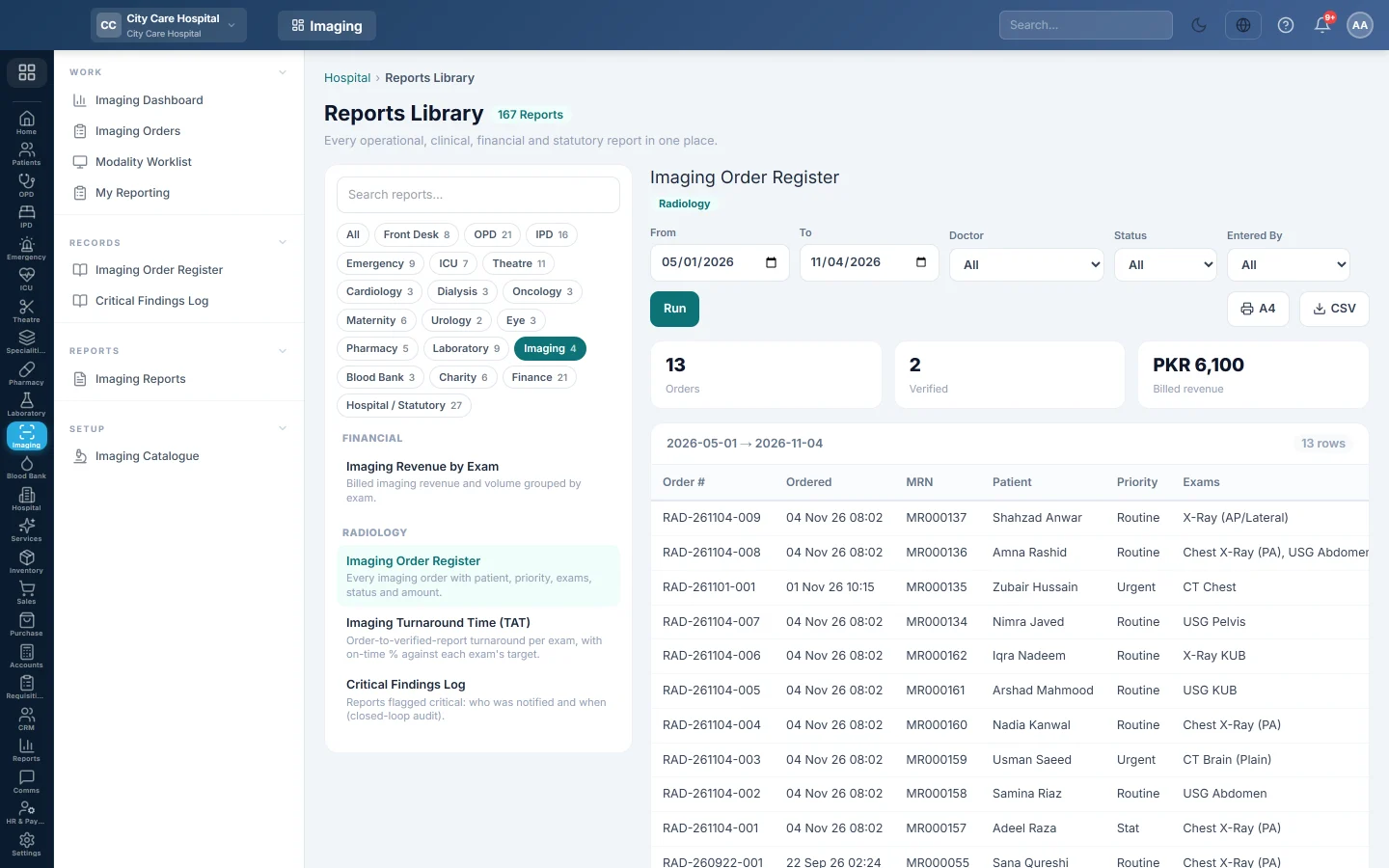
The register of every imaging order over a date range, with patient, priority, exams, amount, status and sign-out time, to print or export.
The Imaging Order Register lists every imaging order in a date range. Use it as the department's register for audits, handovers and month-end checks.
Before you begin
- Your role needs access to the hospital's Reports Library. See Users & Roles.
Where to find it
Open Imaging → Records → Imaging Order Register. It opens in the Reports Library with the report already chosen.
Run the register
- Set From and To. They start at the first of this month and today.
- Optionally pick a Doctor (the referring doctor), a Status, or the user under Entered By who created the order.
- Click Run.
The boxes at the top show the number of Orders, how many are Verified, and the Billed revenue. Each row shows the Order #, Ordered time, MRN, Patient, Priority, Exams, Amount, Status and the Verified time.
The list shows 50 rows a page. Use the arrows below it to move between pages.
Print or export
- Click A4 to print the register in landscape with your letterhead.
- Click CSV to download every row for the filters, not only the page on screen.
Common questions
Which date does the range use? The date the order was created.
Why does Billed revenue differ from the cash book? It adds up the exam value of orders billed at the imaging desk or the Billing Counter, before any discount. Orders charged to a ward or ER bill are not in it.
What do the Status names mean? Ordered is shown as Waiting on the imaging screens, Performed as To Report and Reported as To Verify.
Where is the day sheet for today? Use Print Register on Imaging Orders.
Obrigado. Se ainda precisar de ajuda, escreva para info@eloerp.net.