Cycle Calendar
See every chemotherapy cycle by its scheduled day over four weeks, to plan chairs, chase overdue cycles and see who is due this week.
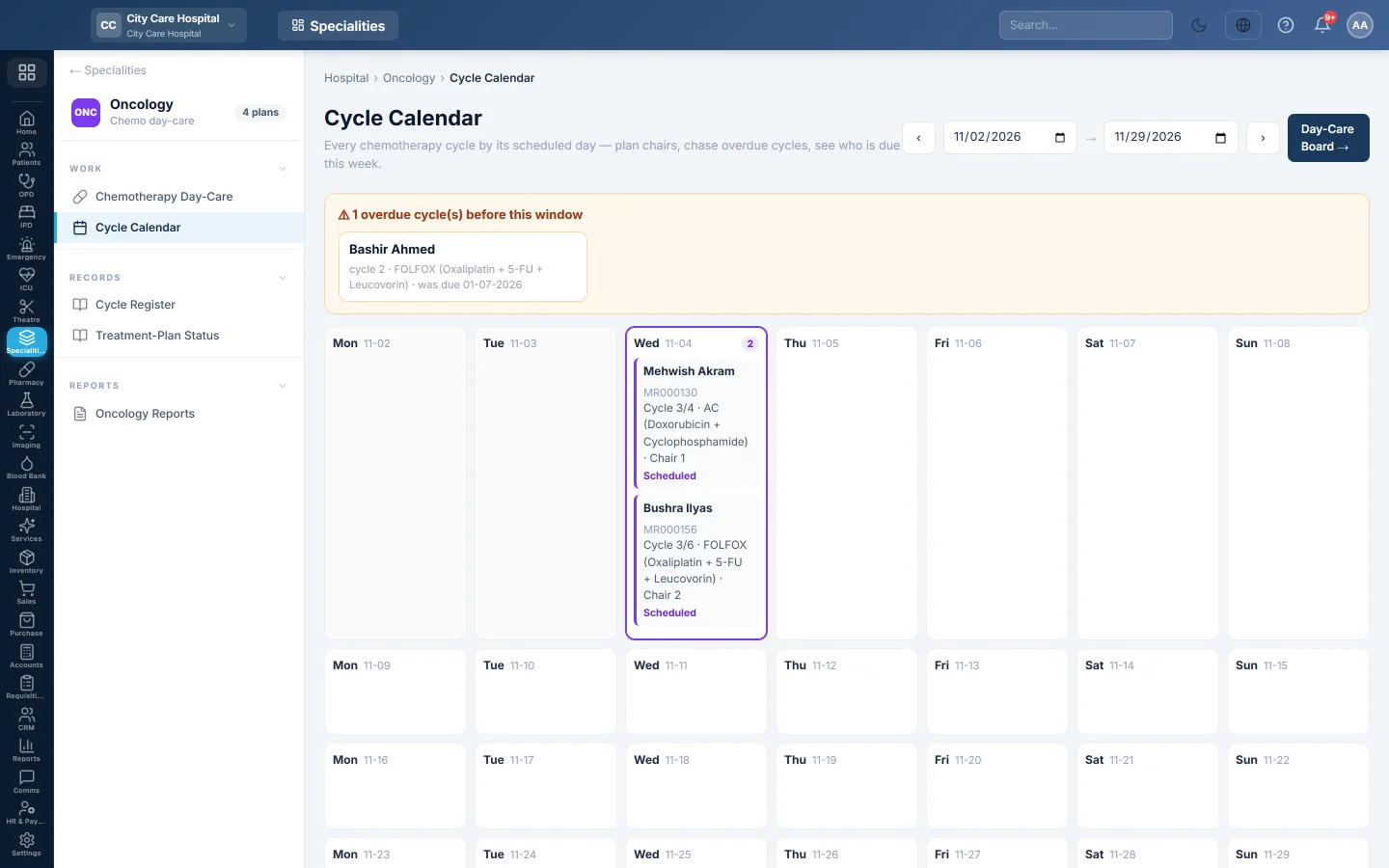
The Cycle Calendar lays out every chemotherapy cycle by the day it is scheduled, four weeks at a time. Use it to plan the chairs, see who is due this week and chase cycles that are overdue.
Before you begin
- Cycles come from the treatment plans in Chemotherapy Day-Care.
- Your role needs View Chemotherapy.
Where to find it
Open Specialities → Oncology → Work → Cycle Calendar.
Read the calendar
- Each day shows its cycles: the patient and MRN, the cycle number out of the planned cycles, the regimen and the chair.
- Each cycle shows its state: Scheduled, In chair, Completed, On hold or Overdue, with the hold reason if there is one.
- Today is highlighted; past days are greyed.
- Above the days, a warning lists the cycles that fell due before this window and were not given, with the date each was due. Click a card to open that patient's plan.
Move through the weeks
- The calendar opens on this Monday and shows four weeks.
- Click ‹ or › to move four weeks back or forward.
- Change the two date boxes to show any period.
To give or change a cycle, click Day-Care Board and open the patient's plan. See Chemotherapy Day-Care.
Common questions
A cycle shows Overdue. Its scheduled day has passed and it was not given. Click its card in the overdue panel to open the plan, then give it or reschedule it.
A patient's next cycle is missing. It has not been recorded on the plan yet. Click + Record Cycle on the plan and save it as Scheduled.
Where is the full list of cycles? See Cycle Register.
Gracias. Si todavía necesita ayuda, escriba a info@eloerp.net.