WHO Checklist Compliance
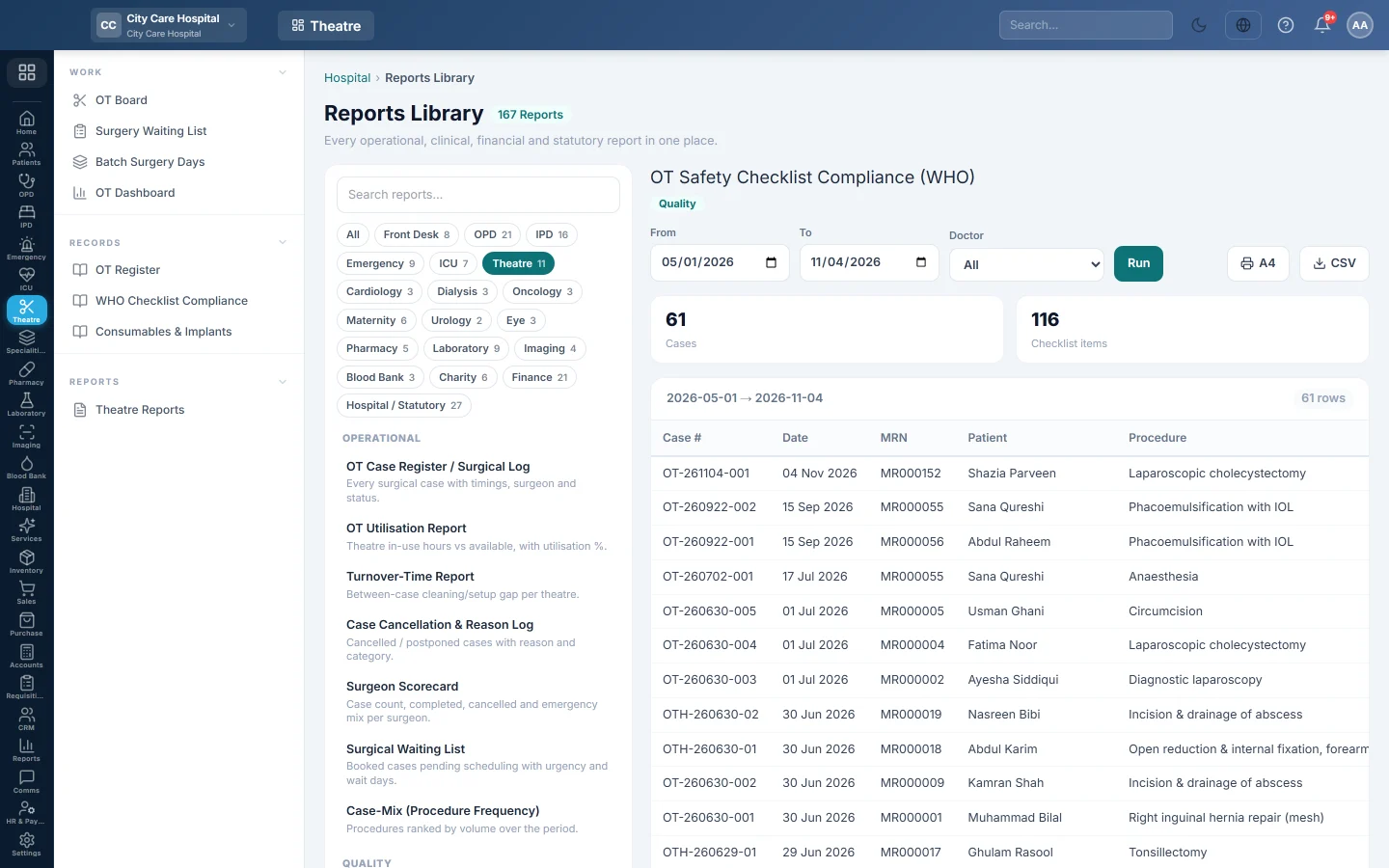
For each operation in a period, how many WHO Surgical Safety Checklist items were ticked at Sign-In, Time-Out and Sign-Out.
WHO Checklist Compliance shows whether each operation went through the WHO Surgical Safety Checklist. Quality teams use it for the theatre safety audit.
Before you begin
- Your role needs the hospital reports permission. See Users & Roles.
- The checklist is ticked on each case's WHO Checklist tab. See Run a surgery case.
Where to find it
Open Operation theatre → Records → WHO Checklist Compliance. It opens as OT Safety Checklist Compliance (WHO).
Run the report
- Set From and To.
- Optionally pick a Doctor (the surgeon).
- Click Run.
- Click A4 to print, or CSV to download every row.
The report lists every case that reached the table in the period: under anaesthesia, in progress, in recovery or completed.
What the report shows
The tiles count Cases and the Checklist items ticked on those cases, for the dates and surgeon you chose.
| Column | What it shows |
|---|---|
| Case #, Date | The case and its date. |
| MRN, Patient, Procedure | The patient and operation. |
| Sign-In | Items ticked before anaesthesia. |
| Time-Out | Items ticked before incision. |
| Sign-Out | Items ticked before the patient left the theatre. |
| Complete | A tick when all three phases show Complete on the case's WHO Checklist tab: each confirmed with every required item ticked or marked N/A. |
Common questions
A case shows 0 in a phase. Nothing was ticked in that phase. Open the case and complete the checklist with Save & Confirm.
Does Complete mean every item was ticked? It means each phase was confirmed with every required item ticked or marked N/A, exactly as the case's WHO Checklist tab shows it. A phase with some ticks but no confirmation leaves the column blank.
Vielen Dank. Wenn Sie weitere Hilfe brauchen, schreiben Sie an info@eloerp.net.