Bed Board
Every ward and bed at a glance - available, occupied, cleaning or reserved - and the quickest way to admit to a free bed or act on an occupied one.
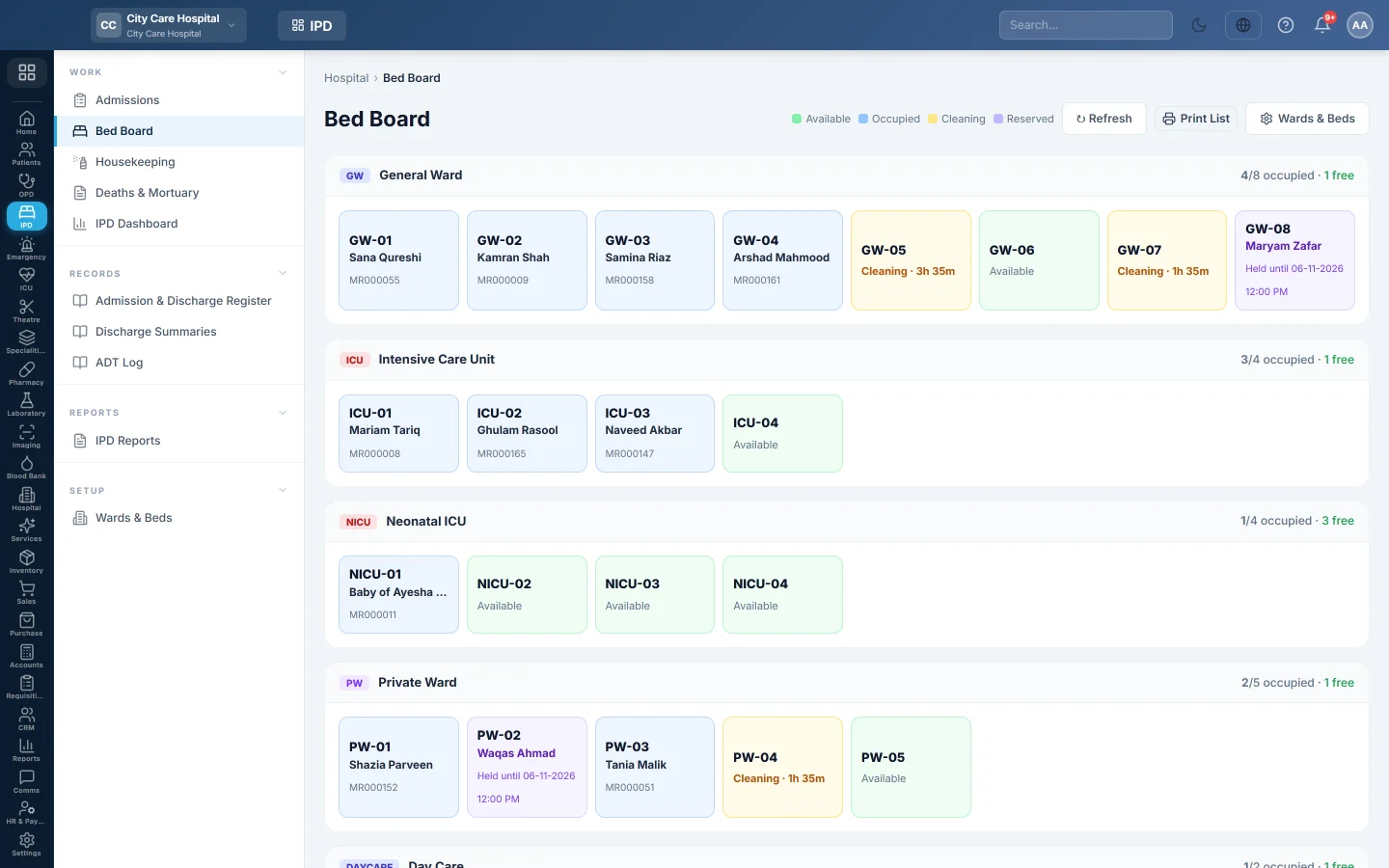
Bed Board shows each ward as a block of beds, coloured by status. Click a bed to admit a patient to it, mark it clean, release a hold or open the patient's chart.
Before you begin
- Wards and beds are set up. Until then the page says No wards configured yet. See Wards & Beds.
- Admitting from a bed needs the admit permission. See Users & Roles.
Where to find it
Open Inpatients (IPD) → Work → Bed Board, or click Bed Board on Admissions.
Read the board
The legend shows the colours: Available, Occupied, Cleaning and Reserved. Each ward header shows how many beds are occupied and free. A ward with a welfare quota shows Welfare beds used against its quota.
An occupied bed shows the patient, the Fall risk score once the nurse has recorded it, and Assessment due when the nursing admission assessment is still missing.
Act on a bed
| Bed | Click it to |
|---|---|
| Available | Open Admit Patient for this bed: patient, department, doctor, type, deposit and reason. |
| Occupied | See the patient, MRN, admission and ward, with Print Slip, Chart, Flowsheet, Billing, Transfer and Discharge. |
| Cleaning | See since when it waits, and Mark clean to make it available. |
| Reserved | See who it is held for and until when. Admit the patient, or Release the bed. |
Click ↻ Refresh to reload. Wards & Beds opens the setup page.
Common questions
A bed stays on Cleaning after a discharge. A discharge sends the bed for cleaning. Click it and Mark clean, or clear it on Housekeeping.
I cannot admit to a free bed from here. Your role cannot admit patients. Ask a user with admission rights.
Why is a bed missing? It is inactive or blocked. Check it on Wards & Beds.
شكرًا لك. إذا كنت لا تزال بحاجة إلى مساعدة، راسلنا على info@eloerp.net.