All Requisitions
Follow every internal request for goods from draft to approval, then turn it into a purchase order, a store issue or a stock transfer.
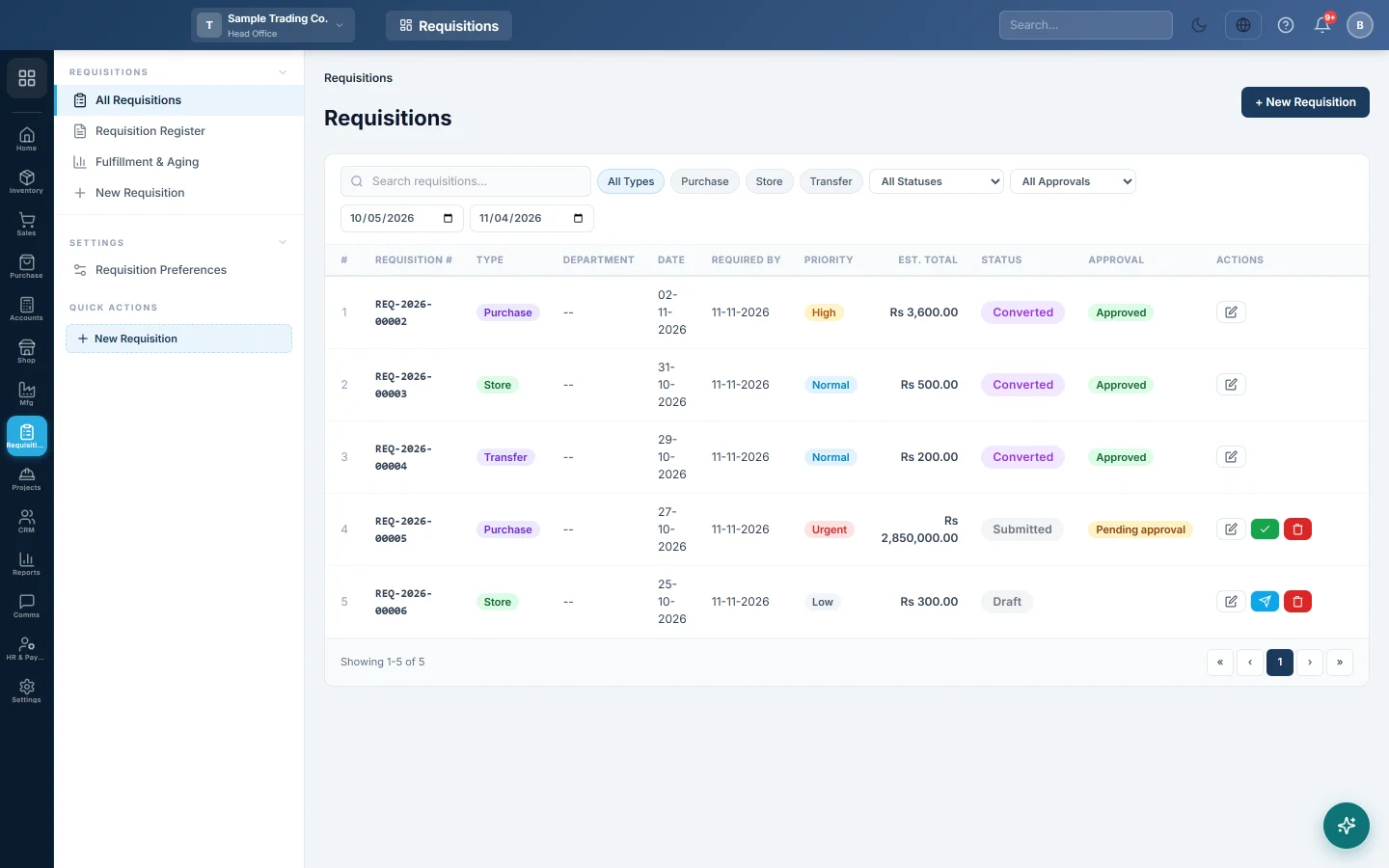
A requisition is an internal request for goods: the kitchen asks the store for rice, a branch asks for stock, or a department asks purchasing to buy printer toner. This list follows each request from draft to approval to fulfilment.
Before you begin
- The Requisitions module must be on for your company. If Requisitions is not in the module rail, ask your provider to switch it on.
- Set the approval amount in Requisition Preferences.
- Roles need the requisition permissions: create, submit, approve and convert. See Users & Roles.
Where to find it
Open Requisitions → Requisitions → All Requisitions. The side menu also has a New Requisition quick action.
The three kinds of requisition
| Type | Used for | Fulfilled by |
|---|---|---|
| Purchase | Goods you must buy from a supplier. | Convert to PO: a purchase order. |
| Store | Goods a department takes from your own store for use. | Issue Stock: a store issue. |
| Transfer | Goods to move to another warehouse or branch. | Convert to Transfer: a stock transfer. |
How a requisition moves
- Draft: someone makes it on New Requisition and can still change it.
- Submit: they click Submit. Below the approval amount it is Approved at once; at or above it, it waits as Pending approval.
- Approve or Reject: an approver opens it and decides. A rejection needs a reason, and the requester can correct and submit again.
- Fulfil: the store or purchasing converts the approved lines. Part-fulfilled requisitions show as partially converted until every line is done.
Find requisitions
- Click a type chip: All Types, Purchase, Store or Transfer.
- Choose a status in All Statuses, or Pending approval or Approved in All Approvals.
- Search by number, and set the dates.
Each row shows the Requisition #, Type, Department, Date, Required By, Priority, Est. Total, Status and Approval. The buttons on a row change with its status: View / Edit, Submit, Approve, Convert to PO, Issue Stock, Convert to Transfer and Delete. A converted or partially converted requisition has no Delete button, because a purchase order, issue or transfer already came from it.
Turn a purchase requisition into a purchase order
- Click Convert to PO on an approved purchase requisition.
- The new purchase order opens with the open lines filled in.
- Pick the supplier, check rates and save. See Purchase Orders.
Lines you leave out stay open on the requisition, so you can order them from another supplier.
Issue stock against a store requisition
- Click Issue Stock in the list or on the requisition.
- Choose the Warehouse the goods leave from and the Issue Date.
- For each line, check the Issue Qty. The modal shows Requested, Fulfilled, Remaining and Available.
- Click Issue Stock.
EloERP refuses the issue if the warehouse does not have enough stock. The issue gets a number such as MI-2026-00012 and shows under Stock Issues on the requisition.
Transfer stock against a transfer requisition
- Click Convert to Transfer in the list, or Transfer Stock on the requisition. The Transfer Stock window opens.
- Check the Source and Destination, which come from the requisition.
- Check each Transfer Qty and click Transfer Stock to confirm.
The transfer works like one made on Stock Transfers. A transfer to another branch is dispatched first and received at the other end.
What happens in the books
- A requisition itself posts nothing.
- A store issue takes the goods out of stock at their average cost. Materials Consumed is debited and Inventory is credited.
- A purchase order posts nothing; the GRN and purchase invoice post as usual.
- A transfer moves stock between warehouses. Between branches it also posts the inter-branch entries, as on Stock Transfers.
To undo an issue or transfer, open the requisition and click Cancel / Reverse on it under Stock Issues or Stock Transfers. The stock and entries are reversed and the lines reopen.
Common questions
My requisition was approved straight away. Its estimated total was below the approval amount. See Requisition Preferences.
I cannot approve my own requisition. Maker-checker is on. Another approver must approve it.
Why can I not edit a submitted requisition? Only drafts and rejected requisitions can be changed. Ask the approver to reject it so you can correct it.
Where do I see requisitions for one project? Pick the project on the requisition. It then shows on that project's Procurement tab. See All Projects.
Merci. Si vous avez encore besoin d’aide, écrivez à info@eloerp.net.