On-Sale Production
See every production run that a confirmed sale invoice triggered, by finished product or by raw material, with the materials used, its cost and the margin on that sale.
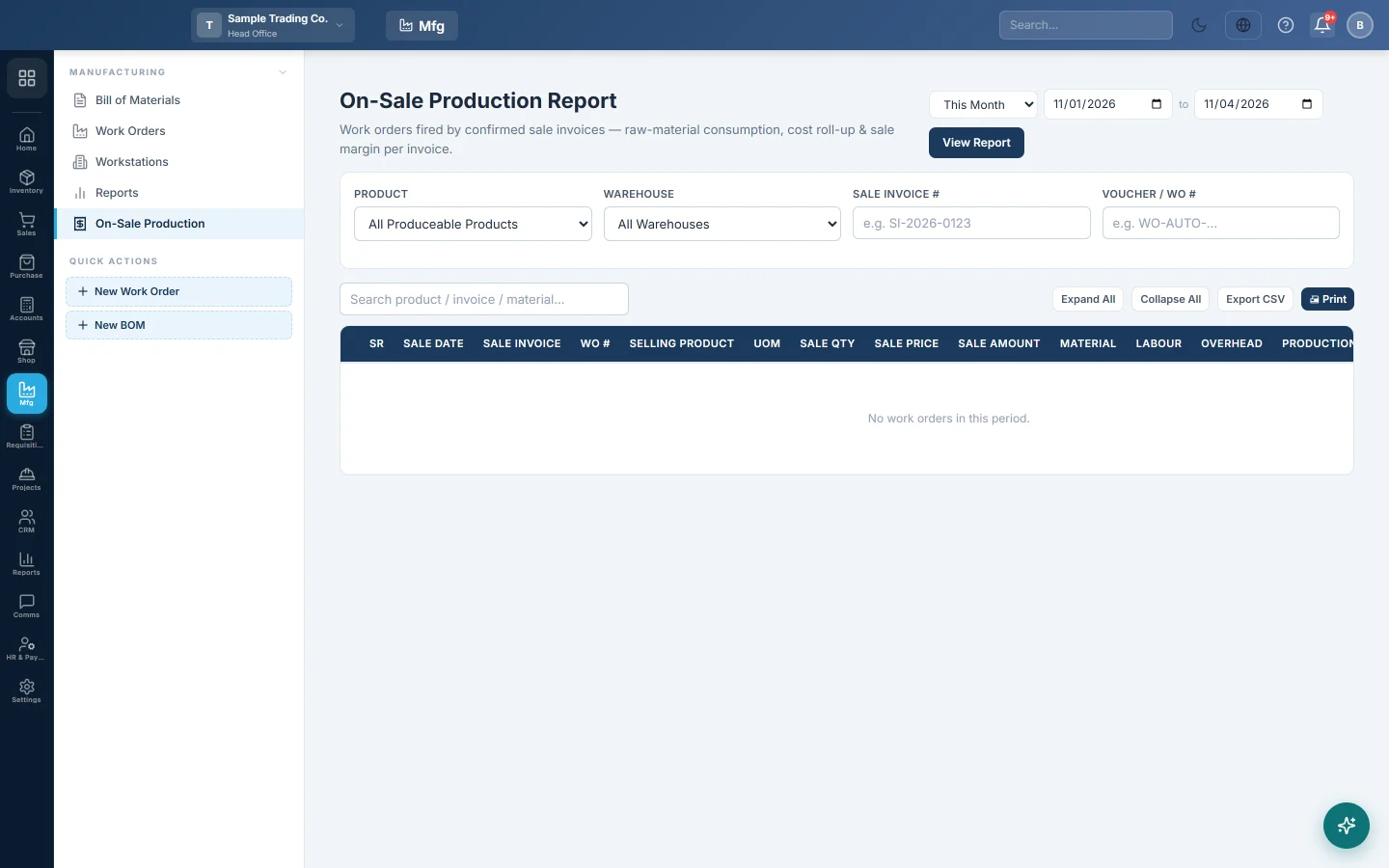
On-Sale Production lists the work orders that EloERP raised by itself when you confirmed a sale of a make-to-order product. Look at it by the product you sold, or by a raw material to see every production that used it. Each row shows the materials used, the production cost and the margin on the sale.
Before you begin
- The product has an active Make to Order BOM with Auto-trigger on Sale Confirmation ticked. See Bill of Materials.
- Sale invoices with that product have been confirmed. See Sales Invoices.
Where to find it
Open Manufacturing → Manufacturing → On-Sale Production. Reports has a button for it too.
Run the report
- Pick the date range at the top. It filters by the day the work order was completed, which is the day the sale was confirmed.
- Choose Finished products or Raw materials on the switch.
- Optionally pick a product in the first box. Type part of a name, SKU or barcode; every product of that kind can be found.
- Narrow it further with the other filters if you like.
- Click View Report, or Apply under the filters.
Picking from a list reloads the report at once. The text boxes wait for Enter or Apply. Reset clears every filter.
Finished products or raw materials
| Switch | The product, category and brand filters mean | Use it to |
|---|---|---|
| Finished products | The item that was sold and produced. | See every time a dish or product was sold and made. |
| Raw materials | A material consumed in the production. | See every production that used flour, for example, and how much of it went in. |
With Raw materials and a filter chosen, the report adds Material Used and Material Cost columns for that material. The Material Used total appears only when one material is picked, because a category mixes units.
If your company has no bills of materials yet, the picker cannot tell the kinds apart and lists every product. It says so under the box.
Filters
| Filter | What it narrows |
|---|---|
| Finished product or Raw material | One product, searched by name, SKU or barcode. |
| Branch | One branch, or All Branches (Consolidated). Head office only; other users see their own branch. |
| Warehouse | The warehouse of the work order. |
| Product category or Material category | A category and its sub-categories. |
| Product brand or Material brand | One brand. |
| Customer | The customer on the sale invoice. |
| Salesman | The salesman on the sale invoice. Shown when you have salesmen. |
| Invoice Status | Confirmed (every posted invoice), Partially Paid or Paid. |
| Production level | Sold product runs only or Sub-assembly runs only. |
| Sale Invoice # | Part of an invoice number, for example SI-2026-0123. |
| Voucher / WO # | Part of a work order number. |
The search box above the table looks in product, invoice, customer and material names.
Totals and pages
The cards show the number of Invoices and Work Orders, the Sale Total, Material, Labour, Overhead, Production Cost and Gross Margin with its percentage. With one finished product picked, Sale Qty is added.
The cards and the Grand Total row always cover the whole report, every page, not just the rows on screen. The table shows 100 work orders a page by default; change it to 50, 250 or 500 with the pager under the table.
Read a row
Each row is one work order: Sale Date, Sale Invoice, Customer, WO #, Selling Product, UOM, Sale Qty, Sale Price, Sale Amount, the cost columns, Margin, Warehouse and Salesman. With all branches, a Branch column is added.
Click a row to see its raw materials. A row marked SUB is a semi-finished item made first for the main product. Use Expand All or Collapse All to open or close every row.
Export or print
- Export CSV downloads every row of the report, all pages, with the filters at the top of the file.
- Print prints the page on screen with the filters used and the totals for the whole report.
Common questions
A sale has no row here. Its product has no active make-to-order BOM with auto-trigger on, or the invoice is still a draft.
I cannot find my product in the picker. Check the switch. A raw material is listed under Raw materials, a dish or finished item under Finished products.
Paid shows fewer invoices than I expect. Paid means paid in full. Part-paid invoices are under Partially Paid; Confirmed shows both.
The margin looks too high. Check the BOM's components and their cost prices. A missing ingredient lowers the production cost.
What happens if I delete the sale invoice? Its work orders are undone with it: the materials go back to stock.
Спасибо. Если помощь всё ещё нужна, напишите на info@eloerp.net.