Courier Accounts
Add the couriers you ship with, their API keys, pickup address, fees and cash-on-delivery settings, so orders can be booked and COD reconciled.
Courier Accounts lists the couriers you ship with. An integrated courier can be booked from EloERP in one click, with the tracking number filled in for you. Any other courier still works: you enter its tracking number by hand.
Before you begin
- Your role needs the online shop courier permissions. See Users & Roles.
- For an integrated courier, have your merchant API keys from the courier's portal.
Where to find it
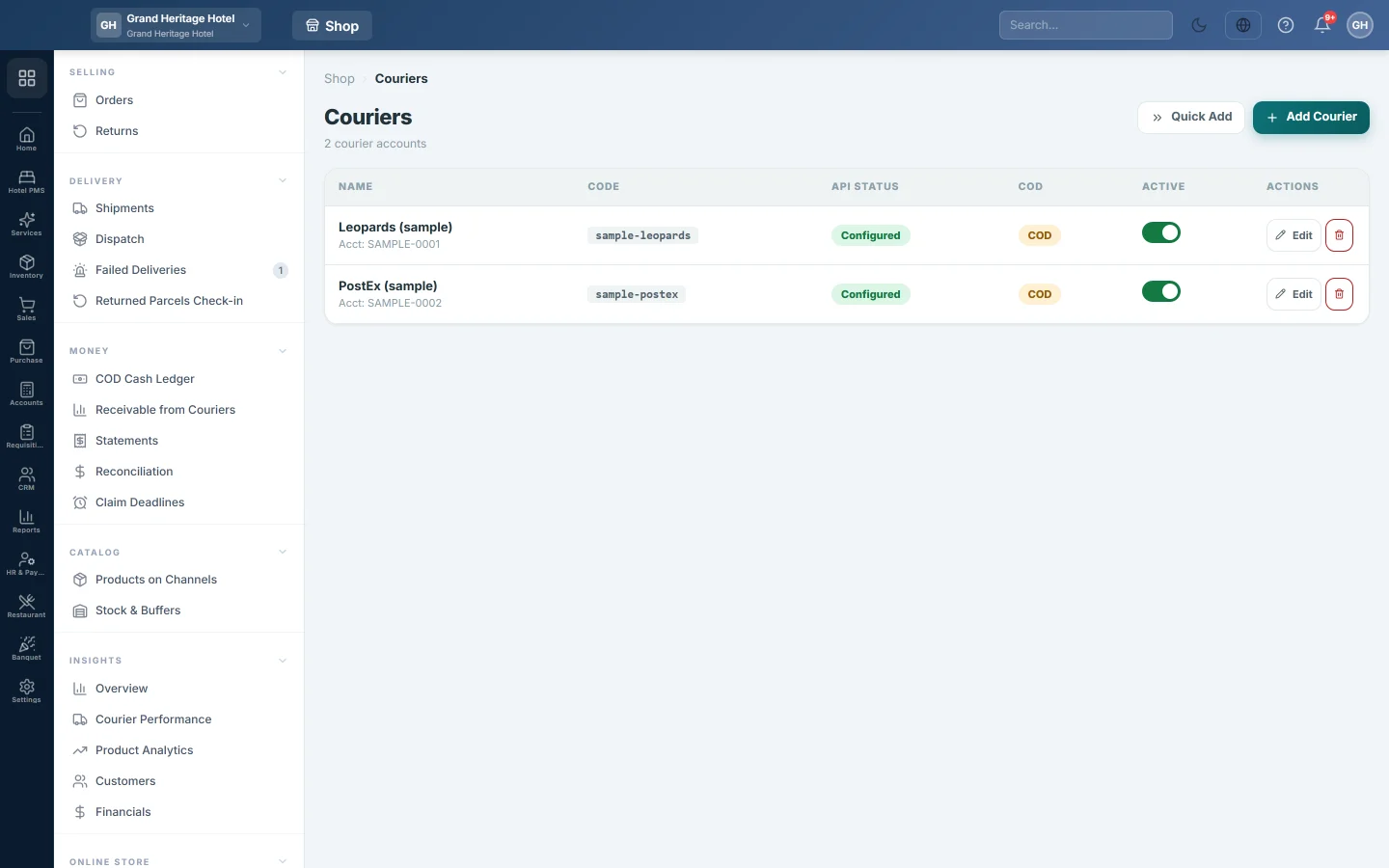
Open Online shop → Setup → Courier Accounts. The page is titled Couriers.
Add a courier
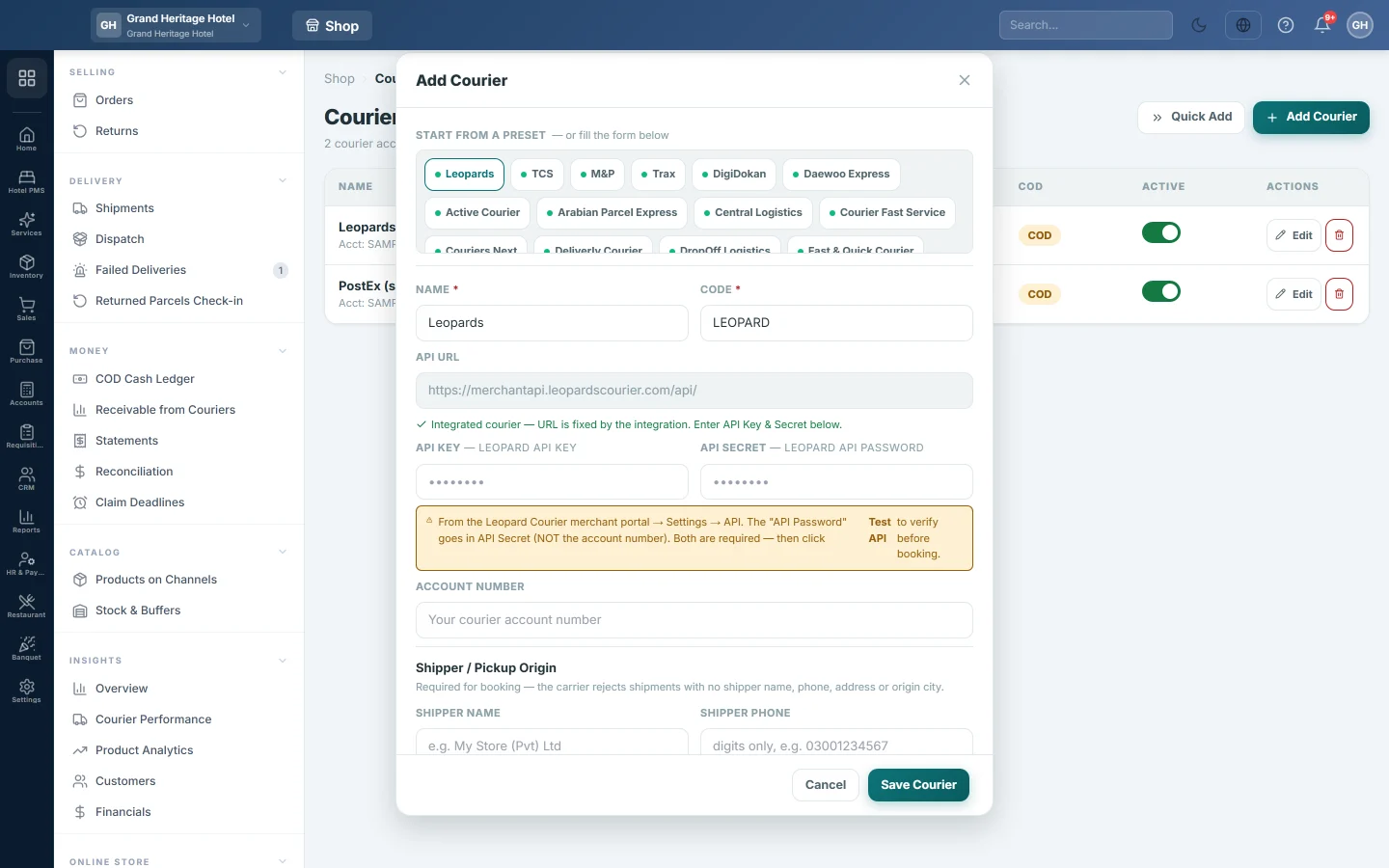
- Click Add Courier.
- Under Start from a preset, click your courier. A green dot marks an integrated courier. This fills in the Name, Code and API URL.
- Enter the keys in API Key, API Secret and Account Number. The hint beside each field says what your courier calls it. Saved keys are never shown back: when you open the courier later, the box reads Saved — leave blank to keep. Type a key only to replace it.
- Under Shipper / Pickup Origin, fill in the Shipper Name, Shipper Phone, Shipper Address and Origin City. The courier refuses bookings without them.
- Optionally set the Default Service, Return City, Return Address and Default parcel weight (kg).
- Fill in the fees: Default Delivery Fee, COD Fee %, Remittance Cycle (days) and Tolerance ±%.
- Tick Supports COD if the courier collects cash on delivery, and keep Active ticked.
- Click Save Courier.
- For an integrated courier, click Test API on its row to check the keys before the first booking.
See Add a courier account for the courier-by-courier details.
Read the list
| Column | What it shows |
|---|---|
| Name | The courier and its account number. |
| Code | The code that links it to the courier's integration. |
| API Status | Configured when an API URL or key is saved, otherwise Not Configured. |
| COD | Whether it collects cash on delivery. |
| Active | Click the switch to stop or restart using the courier. |
For Leopards, Push URL shows the address and header to paste into Leopards' Push API settings, so its status updates reach EloERP straight away.
Ship from more than one place
Under Additional Pickup Locations, click Add location for each extra warehouse or shop. Give it a Label, shipper details, Origin City and, optionally, the warehouse it ships from. When you book, you choose which location the parcel leaves from.
What happens in the books
When you save a courier, EloERP makes two ledgers for it: {courier name} — COD Clearing, which holds cash the courier has collected but not yet paid you, and {courier name} — Delivery Charges, an expense under Courier Charges. Courier statements are matched against these. See Statements.
Common questions
What do COD Fee % and Tolerance ±% do? They are used when you check a courier's payment. A difference below the tolerance is accepted without asking you.
My courier is not in the presets. Click Add Courier and type its name and code yourself. It works for everything except one-click booking.
Delete did not remove the courier. Orders, shipments or remittances still refer to it, so it was switched off instead.
Test API says the connection failed. Check that each key is in the right box. For Leopards, the API password goes in API Secret, not the account number.
Teşekkür ederiz. Hâlâ yardıma ihtiyacınız varsa info@eloerp.net adresine yazın.