Channels
Connect your Shopify, WooCommerce or Daraz store so its orders come into EloERP, and pull or push products between them.
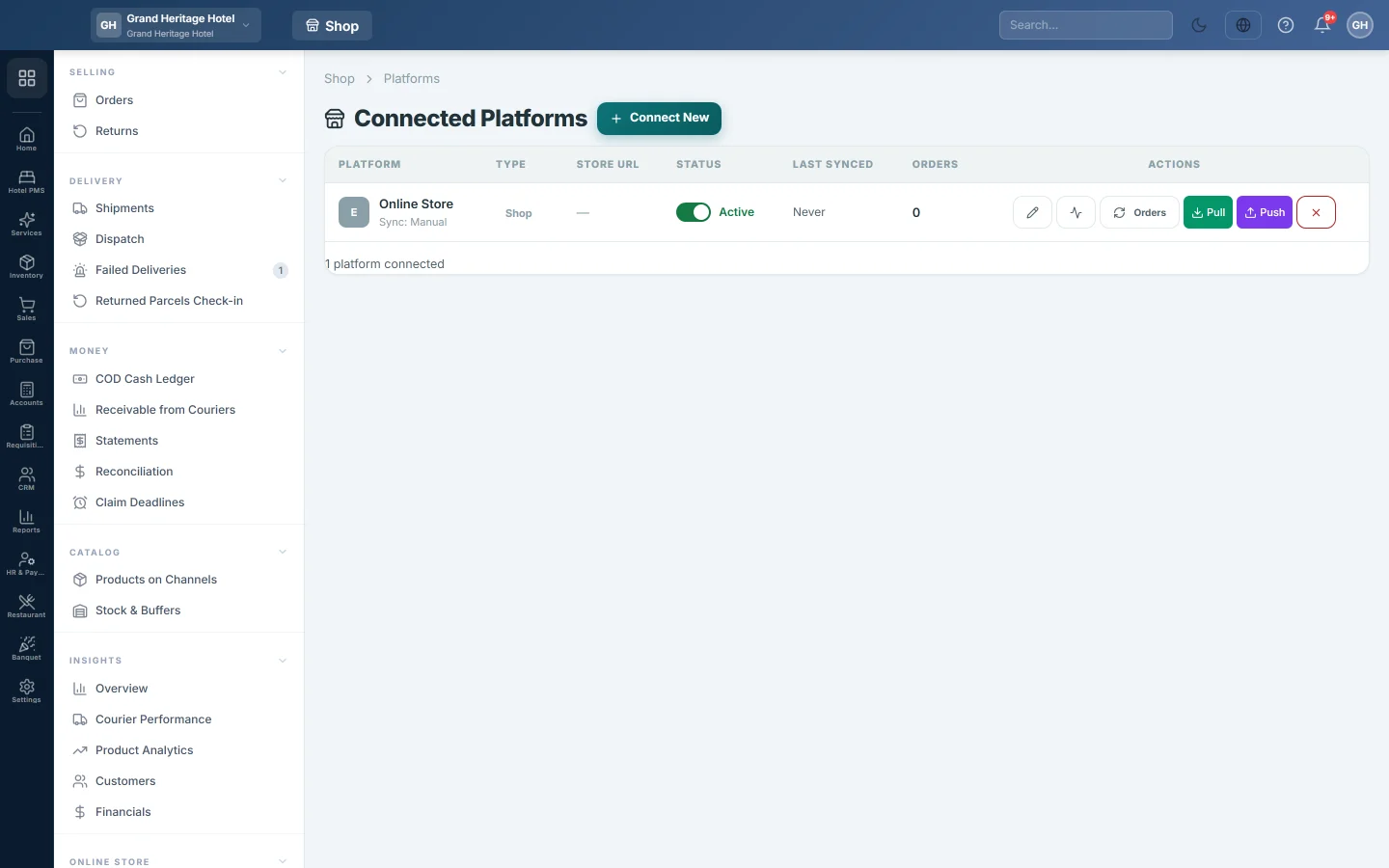
Channels lists the outside stores connected to EloERP: Shopify, WooCommerce and Daraz. From here you bring their orders in, pull their products into EloERP, and push your products out to them.
Before you begin
- Your role needs the online shop platform permissions. See Users & Roles.
- Have the store's address and its keys ready: for Shopify an Admin API access token, for WooCommerce the WordPress admin login.
- Your own online store may also be listed here, as Online Store. It is set up on Online Store, not here.
Where to find it
Open Online shop → Setup → Channels. The page is titled Connected Platforms.
Connect a store
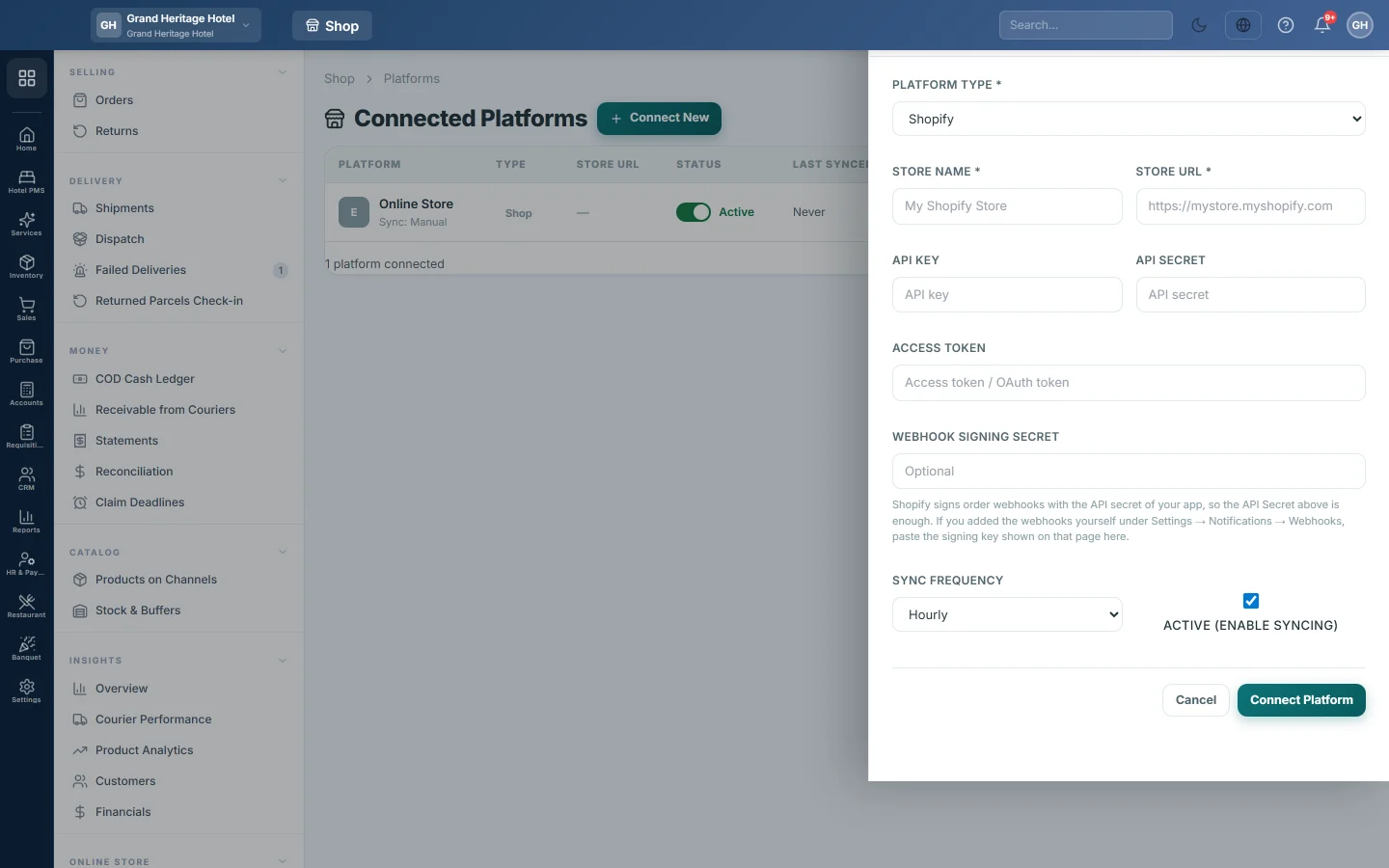
- Click Connect New.
- Choose the Platform Type: Shopify, WooCommerce or Daraz.
- Type a Store Name, for example Main Shopify Store, and the Store URL.
- Fill in the keys for that platform. The steps differ; see Connect your Shopify store and Connect your WooCommerce store.
- Leave Active (enable syncing) ticked. Sync Frequency can stay at Hourly.
- Click Connect Platform.
Use the buttons on a store
| Button | What it does |
|---|---|
| Edit (pencil) | Changes the name, URL, keys or frequency. Saved keys are not shown; leave a key blank to keep it. |
| Test Connection | Checks the address and keys with the store and tells you the result. |
| Orders | Brings in the store's new orders now, every page of them, through the same importer the store's own order events use. |
| Pull | Reads the store's products into EloERP, maps categories and downloads images. |
| Push | Sends your products marked Ecommerce to the store, creating or updating them. |
| Disconnect (X) | Removes the store. If it still has orders or returns, it is only switched off. |
For WooCommerce, Push first compares your products with the store and tells you how many will be updated and how many created. Nothing changes until you confirm.
What the store sends on its own
Once connected, the store sends EloERP its order events. Product changes made on the store are logged and ignored, so your catalogue here stays the master, unless your service provider sets the channel to pull products by webhook.
- A new or changed order arrives in Orders. Once an order is invoiced, verified, booked or shipped here, the store can no longer rewrite its lines or amounts. See Sync Logs.
- A WooCommerce order marked completed on the store, with no courier booked here, gets a timeline note and an alert. Post its invoice from the order page; no invoice is made on its own.
- A store cancellation of an order whose sale invoice is posted here does not cancel it. The timeline asks you to reverse it with Mark RTO or Start return.
Switch a store off
Click the switch in the Status column. Inactive stops syncing without removing anything. Click it again to make it Active.
Common questions
Orders from my store are missing. Click Orders on the store to bring them in now, then check Sync Logs for errors.
Can I connect Daraz? You can add a Daraz store, but bringing in its orders and products is not available yet.
Disconnect did not remove the store. It still holds orders or returns, so it was switched off instead, to keep those records.
What happens to stock? Stock sent to each channel is set on Stock & Buffers. Which products are linked to which channel is on Products on Channels.
Terima kasih. Jika masih butuh bantuan, kirim email ke info@eloerp.net.