Products on Channels
Choose which products go to your WooCommerce or Shopify store, send them, set a separate online price, and compare the store's catalogue with yours.
Products on Channels is where you decide which of your products appear on your WooCommerce or Shopify store and send them there. The second tab, Store vs ERP Differences, shows every product beside the store's copy so you can spot a wrong price or SKU.

Before you begin
- Connect your WooCommerce or Shopify store first. See Channels. A channel such as Manual Orders or your own Online Store takes orders only; products cannot be sent to it from here.
- Add the products with a sale price, SKU and pictures. See All Products.
- Your role needs the product sync permission. Store vs ERP Differences has its own catalogue comparison permission.
Where to find it
Open Online shop → Catalog → Products on Channels. The page title reads Product Sync. Click the Store vs ERP Differences tab for the comparison.
Read the list
The list shows the active products of the branch you are working in. The tabs All Products, Synced and Not Synced split it by whether the product is already linked to a store.
| Column | What it shows |
|---|---|
| Product Name | The product, and how many variants it has. |
| Type | Simple, Variable or Multi UOM. |
| ERP Price | The sale price on the product. |
| Store Sync | Ticked: the product may be sent to your stores. Untick to keep it off every store. |
| Website | Ticked: shoppers can see it on your WooCommerce or Shopify store. Untick to hide it without deleting it. |
| One column per store | Synced or Not Synced, read from the product's link to that store, and the online price saved for it. |
| Actions | Sync, Prices, Push Price and Remove. |
Use the search box, All Categories, All Brands, All Types and the sort list to narrow it down. All Platforms picks the store you are working with: the Synced and Not Synced tabs are judged against it, and Sync, Push Price and Remove act on it.
Send a product to your store
- Make sure Store Sync is ticked on the product.
- Click Sync on its row. The buttons give way to a timer while it works.
- Wait for the message sent to your store. The product then shows on the Synced tab. A product with Store Sync unticked is not sent; the message tells you to tick it first.
EloERP sends the name, SKU, price, pictures and variations. If the product is already on the store, it updates it instead of making a second copy.
Choose the variations and units that go online
- Click the product's row to open it.
- Under Variations, tick the ones that should exist on the store.
- For a product sold in several units, tick the units to sell under Selling Units. Each ticked unit becomes a buyable option at its own price.
- Click Sync again to send the change.
Variations take priority: a product with variations does not publish its units separately.
Set a different price online
- Click Prices on the product.
- In Platform-Specific Pricing, one row per WooCommerce or Shopify store, type the Selling Price for each store. Compare Price is the higher crossed-out price shoppers see beside it; it is sent only when it is above the selling price. Status shows whether the product is linked to that store.
- Click Save Prices.
- Click Push Price to send the new price to the store picked in All Platforms now. It works for WooCommerce and Shopify stores alike.
Hide or remove a product
- Hide it for a while. Untick Website. The product goes to draft on your WooCommerce or Shopify store at once and keeps its link and order history. Tick it again to show it.
- Keep it off the stores. Untick Store Sync. Pushes skip it from then on.
- Delete it from the store. Click Remove, then Remove in the box. EloERP deletes it on the store and drops the link and the online price. Your own product is not touched.
Compare the store with your catalogue
The Store vs ERP Differences tab (title Catalog Comparison) lists every product and variation beside the store's copy: ERP price, ERP sale, Website price, Web sale and Website SKU.
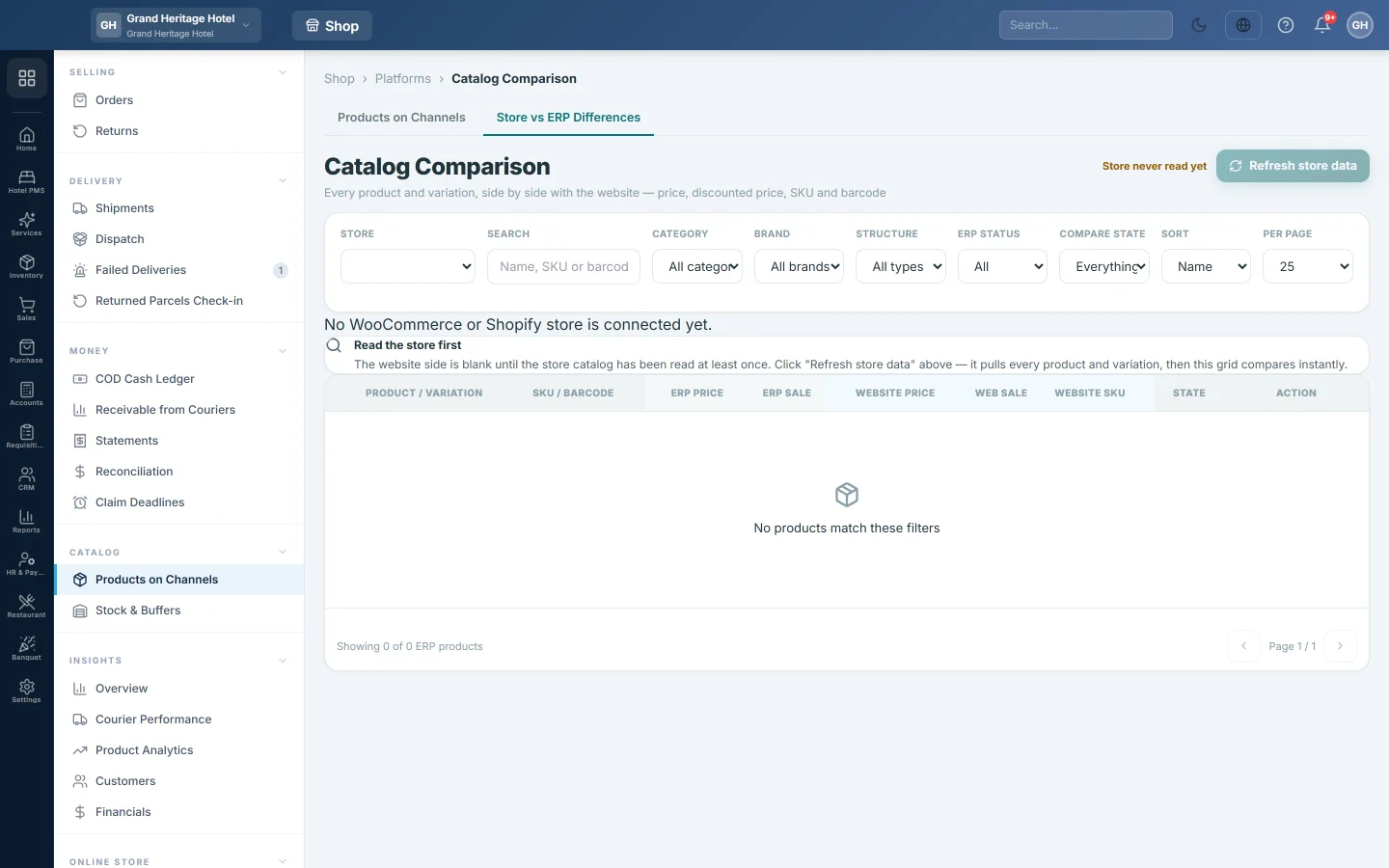
- Pick the Store.
- Click Refresh store data to read the store's catalogue. A big catalogue takes a few minutes; keep the page open.
- Set Compare state to Different to see only the rows that do not match. Red cells show what differs.
- Click Push to send your version to the store, or Pull to take the store's version into EloERP.
The note beside the button shows how old the store data is. Refresh it before trusting In sync.
For a step-by-step guide, see Fix price and SKU differences with your website.
Common questions
I clicked Sync and the message says to connect a store. No WooCommerce or Shopify store is connected, or the platform filter is set to a channel that cannot take products. Connect one on Channels, or clear All Platforms.
Push on Channels says some products were skipped. The result counts the products sent, the errors and the products skipped because Store Sync is unticked. Tick Store Sync and push again.
Why does a product not appear in the list? The list shows active products of your current branch only. Check the branch in the top bar and that the product is active.
What is the difference between Store Sync and Website? Store Sync decides whether EloERP manages the product on your stores at all. Website decides whether shoppers can see it.
Do I need to sync stock here? No. Stock goes out from Stock & Buffers.
Why does the comparison say Store never read yet? Click Refresh store data once. The grid compares against that copy until you refresh it again.
Спасибо. Если помощь всё ещё нужна, напишите на info@eloerp.net.