Orders
Work through every online, WhatsApp and phone order from one list, verify and hold orders, book couriers in bulk, print invoices and labels, and open one order to ship it and post its invoice.
Orders is the desk where your team handles every order from your online store, Shopify, WooCommerce and the orders you type in yourself. You select many orders and act on them together, and open one order to see its full history and money.
Before you begin
- Connect a channel so orders arrive on their own. See Channels. Orders taken on WhatsApp or by phone are typed in with New Order; see Take a phone or WhatsApp order.
- To book parcels, add a courier account. See Courier Accounts.
- For prepaid orders, the payment gateway exists as a payment method. See Payment Methods.
- Your role needs the online shop order permissions to view, edit and fulfil orders. See Users & Roles.
Where to find it
Open Online shop → Selling → Orders. The side menu also has a New Order quick action.
Find orders
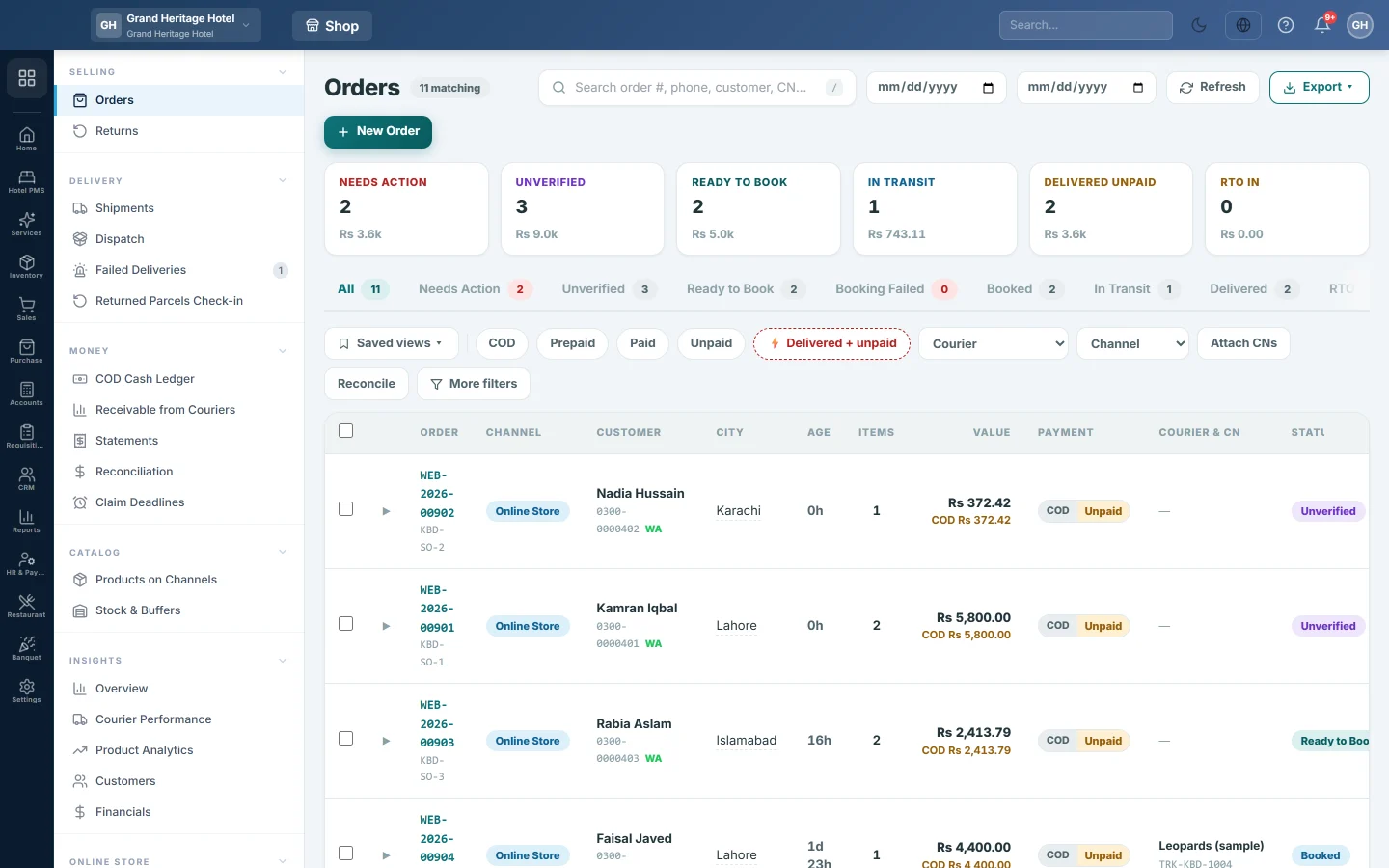
Every order sits in one stage tab. Payment is a filter and a badge, not a tab, because an order can be delivered and still unpaid.
| Tab | Orders in it |
|---|---|
| Needs Action | The courier rejected the booking, no courier movement for 4 days, delivered but unpaid, incomplete address, or weight missing. These orders also stay on their own stage tab. |
| Unverified | New orders nobody has confirmed. |
| Ready to Book | Verified orders waiting for a courier. |
| Booking Failed | The courier rejected the last booking. |
| Booked | A consignment number (CN) exists, but the parcel has not moved. |
| In Transit | With the courier. |
| Delivered | Delivered or completed. |
| RTO In | Coming back undelivered (return to origin). |
| Returned, Cancelled, On Hold, Lost | Closed or paused orders. |
To narrow the list:
- Type an order number, phone, customer name or CN in the search box. Pressing / jumps to it.
- Click the pills COD, Prepaid, Paid or Unpaid, or Delivered + unpaid for money still to collect.
- Pick a Courier or a Channel, or set the two dates.
- Click More filters for city, value range, order age, SKU, warehouse and flags such as Weight missing, Address incomplete, No CN yet and Not yet printed, then click Apply.
Each filter shows as a chip; click its ✕ to remove it, or click Clear all. When filters are on, the tabs say counts reflect filters.
Saved views has ready presets, such as Ready to dispatch today and Booking failures. Click Save current view… to keep your own filters under a name.
Read the list
The table shows the order, channel, customer with call and WhatsApp links, city, age, items, value, payment, and the courier with its CN. The age turns amber after 2 days and red after 5 days. Click ▶ on a row to see its lines.
- Click a city, phone or weight to correct it in place, and press Enter to save.
- Columns ▾ shows or hides columns such as warehouse, weight, printed and tags. The density button switches between Comfortable and Compact.
- The footer shows the Page value, the Filtered total and the COD exposure of the filtered orders.
- The page checks for new orders every minute. It never reloads under you; a banner offers Refresh now.
Act on many orders
- Tick the orders, or tick the header box for the whole page. Shift-click selects a run of rows.
- To include every order that matches the filter, click Select all {n} matching this filter.
- Use the dark bar:
- Book with courier books them all with one courier, as described below.
- Print offers Invoice (A4), Invoice (Thermal), Courier labels, Packing slip, Picking list and Load sheet.
- Verify confirms the orders. Hold pauses them, with an optional reason. Release takes them off hold.
- Click Clear selection when you are done. The selection stays while you change pages or filters.
The ⋮ button on a row shows only the actions that fit that order's stage, such as Verify, Book with courier, Fix & retry, Print CN or Release hold.
Book orders with a courier
- Select the orders and click Book with courier.
- Choose the COURIER. A courier without a booking link shows manual only.
- Optionally fill in SERVICE TYPE, PICKUP LOCATION and a DEFAULT WEIGHT (KG) for orders that have no weight.
- Click Run pre-flight check. Nothing is sent to the courier yet.
- Orders that will fail show the reason, such as a city the courier does not serve. Click Fix, correct the value, click Save, then Re-check.
- Click Book all {n}, or Book the {n} ready, leave the rest.
- Use Retry failed only for the rest, and Print the labels for the booked ones.
Attach CNs booked on the courier portal
If you booked on the courier's own website, click Attach CNs, pick the courier, paste one order number and CN per line, separated by a comma, and click Attach. Or click Reconcile, pick the courier and dates, click Fetch from Courier, then Attach All.
Open one order
Click the order number to open its page. The header shows the stage, the steps from Placed to Delivered, and one main button for the stage, such as Verify order, Book with courier, Fix & retry or Print CN. The ⋯ button holds the other actions, such as Hold, Cancel with reason, Add tag, Add comment and Re-sync from channel.
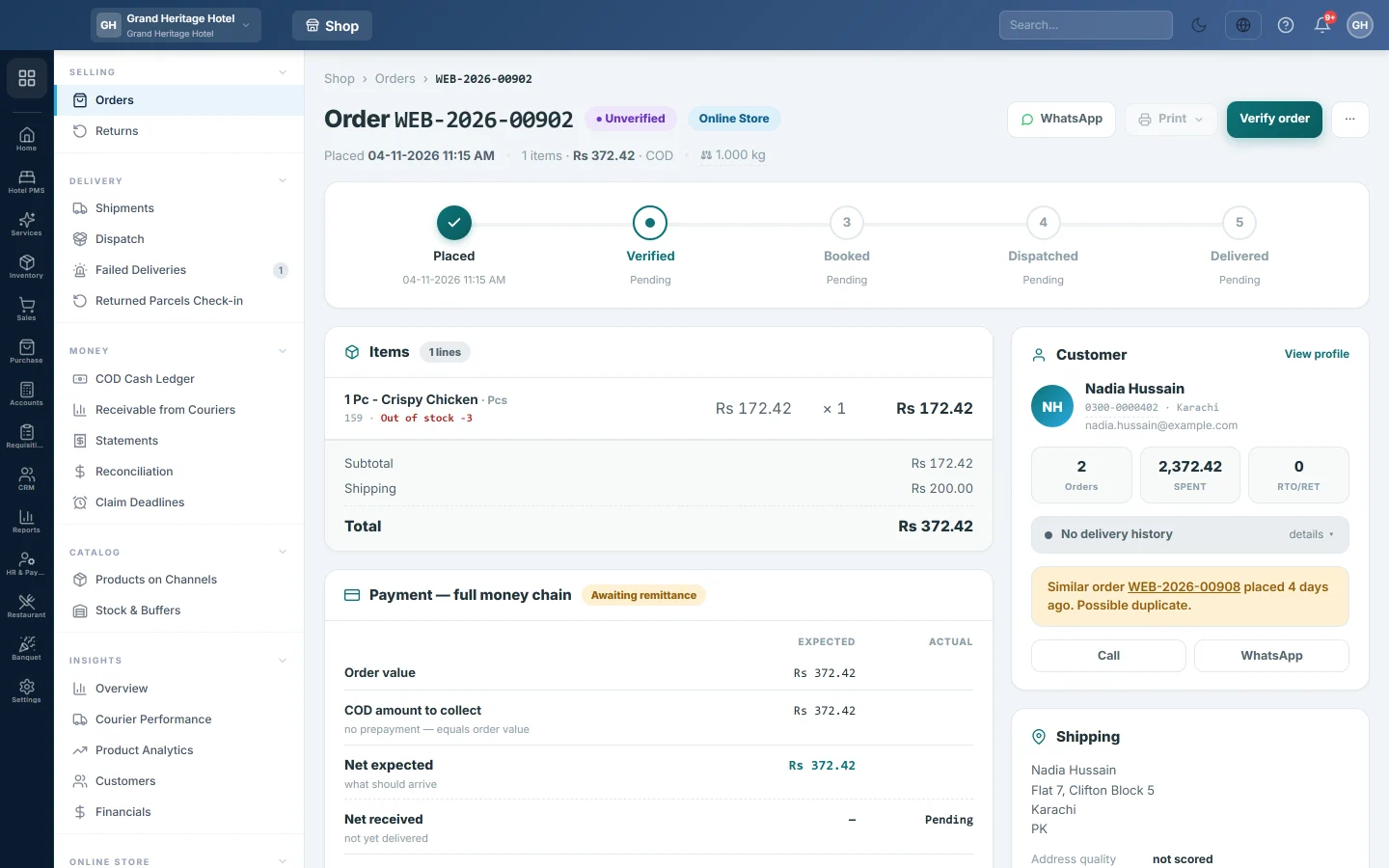
The page also shows:
- Items, with the stock of each line, and the totals.
- Payment — full money chain: what the courier should remit after its charges and tax, what actually arrived, and any short payment you can claim.
- Tax & Compliance — FBR, when FBR digital invoicing is set up.
- Timeline, Verification and Notes & tags.
- Customer, with past orders, returns and a risk score, and a warning when a similar order was placed recently.
- Shipping, with the address quality, the CN, Live Tracking, Refresh status and Cancel booking.
- Documents & Evidence, such as the invoice, the label and the courier statement.
When a booking failed, a red banner gives the courier's reason with Fix phone, Fix city, Fix weight and Retry booking.
Export orders
Click Export ▾ and choose This page, All matching filters or Selected only. The file is a CSV. All matching filters exports the first 200 orders.
What happens in the books
An order posts nothing while it waits. The books move when the order is booked with a courier, from this list, the Dispatch Desk, a courier rule or its own page with Create Fulfillment and Also post the Sale Invoice + GL ticked, or when a manual order is saved with Post Sale Invoice + GL immediately on. Scanning a parcel out posts nothing.
- Cash on delivery. A sale invoice is made for the buyer. The courier's COD Clearing ledger is debited with the order total instead of the customer's ledger, because the courier collects the cash. Sales, tax and shipping are credited as on any sale invoice, and the goods leave stock at average cost.
- Prepaid. The invoice is made as paid, and the payment method's Clearing ledger is debited instead, because the gateway holds the money.
- Delivered. Nothing more is posted; the sale was recorded at dispatch.
- Mark RTO on the order page makes a sale return. It brings the goods back into stock and credits the same clearing ledger.
- Start return on a delivered order opens a customer return on Returns. The books move when it is refunded there.
The cash reaches your bank when you record the courier's or gateway's statement. See Statements.
Common questions
Why is an order in Needs Action and Ready to Book at once? Needs Action collects problems across all stages. Fix the reason shown in the row and the order leaves Needs Action.
The courier rejected an order. What now? Open it, read the red banner, fix the phone, city or weight, and click Retry booking.
Can I cancel a booked order? Open it and click Cancel booking under Shipping. This cancels the consignment and returns the order to Ready to Book. If its sale invoice was already posted, cancel that invoice first.
Can I cancel an order? Only while its sale invoice is not posted. Once it is, Cancel with reason is refused. Reverse the order instead: Mark RTO when the parcel came back, or Start return on a delivered order. Both put the stock and the receivable back.
Why is an order On Hold? Someone held it, or it is an online store order waiting for its card or bank payment. Held orders stay out of dispatch until released.
A label shows v2. What does that mean? It was printed before. Printing it again asks first, because a duplicate label can ship a parcel twice.
Where do returns go? See Returns for customer returns and Returned Parcels Check-in for parcels the courier brings back.
Gracias. Si todavía necesita ayuda, escriba a info@eloerp.net.