Ledger Statement
The statement of any one account (cash, bank, a customer, an expense) for a period, with balance brought forward and a running balance.
The Ledger Statement shows one account from your chart of accounts for a period: the balance brought forward, every entry with a running balance, and the closing balance. It works for any account, from Cash in Hand and bank accounts to customers, suppliers, expenses and income.
Before you begin
- The Ledger Statement is part of your subscription plan, with the General Ledger. If the menu item is missing, your plan does not include it.
- Your role needs the View Ledger Statement permission, set under Users & Roles.
- If your role is limited to certain account groups, you can only pick accounts in those groups.
Where to find it
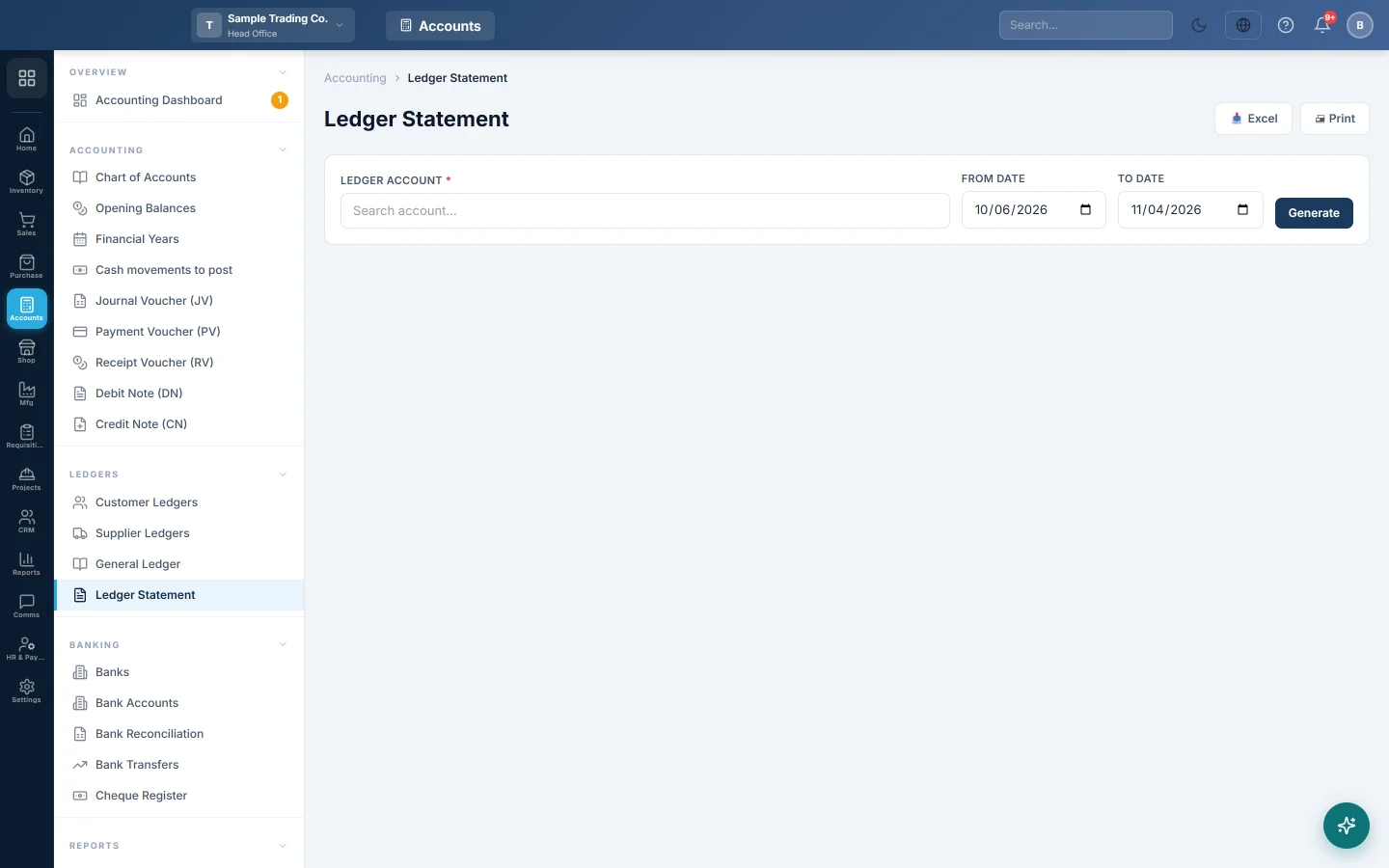
Open Accounting → Ledgers → Ledger Statement.
The ledger links in the Customers and Suppliers lists and in the Chart of Accounts open this page with the account already picked.
Run a statement
- In Ledger Account, type part of the account's code or name and pick it from the list.
- Set From Date and To Date. The page starts in your company's default report range.
- Click Generate.
- Click any voucher number to open that entry: its lines, where it came from, and Delete permanently… if your role allows it.
The heading shows All branches at head office. A user signed in to a branch sees that branch's name and only that branch's entries.
How to read it
The account's name, code and group appear at the top. Four cards show Opening Balance, Total Debit, Total Credit and Closing Balance.
| Date | Voucher # | Description | Debit | Credit | Balance |
|---|---|---|---|---|---|
| 1 Mar | Balance b/f | Opening Balance | 30,000 | Rs 30,000 Dr | |
| 2 Mar | RV-2026-00040 | Received from Ali Traders | 8,000 | Rs 38,000 Dr | |
| 5 Mar | PV-2026-00018 | Electricity bill | 6,500 | Rs 31,500 Dr | |
| 31 Mar | Balance c/f | Closing Balance | 8,000 | 6,500 | Rs 31,500 Dr |
Balance b/f is everything posted to the account before the From Date, plus any opening balance on the account. Balance c/f carries the closing balance into the next period.
The balance is green when it sits on the account's normal side: Dr for assets and expenses, Cr for liabilities, equity and income. It turns orange when it is on the unusual side, such as a cash account in Cr or a supplier in Dr. An orange balance is worth checking.
When the account is kept in another currency, two more columns show the amount in that currency and its running balance.
Print, export or share
- Print prints the statement in landscape with the account and period at the top.
- Excel downloads it with the opening line first.
- WhatsApp sends it as a PDF. For a customer's or supplier's account it opens their mobile number. It shows only when sharing is switched on in Print Settings.
These buttons work once the period has at least one entry.
Common questions
Cash in Hand shows a credit balance. You recorded more cash going out than coming in. Usually a receipt was posted to a bank account instead of cash, or a payment was entered twice. Open the entries around the date the balance turned orange.
The statement shows nothing. The account had no entries between the dates. The opening balance still shows. Widen From Date to see older entries.
A voucher waiting for approval is missing. It is not in the books until it is approved in the Voucher Register.
It does not match a branch's figure. At head office the statement covers all branches. Compare like with like: sign in to the branch, or compare against a report for all branches.
How is this different from Customer Ledgers? Both read the same entries, so the balances match. Customer Ledgers and Supplier Ledgers add the item lines of each invoice and the party's details.
Can I fix a wrong entry from here? Open the voucher and use Open to go to its document, then edit or cancel it there. Delete permanently… removes it from the books entirely; see Deleted entries for what is kept.
شكرًا لك. إذا كنت لا تزال بحاجة إلى مساعدة، راسلنا على info@eloerp.net.