Item-wise Report
See every product line you bought in a period, with supplier, quantity, rate, discount, tax, batch and expiry.
The Item-wise Purchase Report lists each product line on your confirmed purchase invoices. Use it to see what you bought, from whom and at what rate.
Before you begin
- Only confirmed, part-paid and paid invoices are counted. Drafts and cancelled invoices are left out.
- The report shows the branch you are working in.
- Your role needs the purchase item report permission, see Users & Roles.
Where to find it
Open Purchases → Reports → Item-wise Report.
Run the report
- Set the from and to dates.
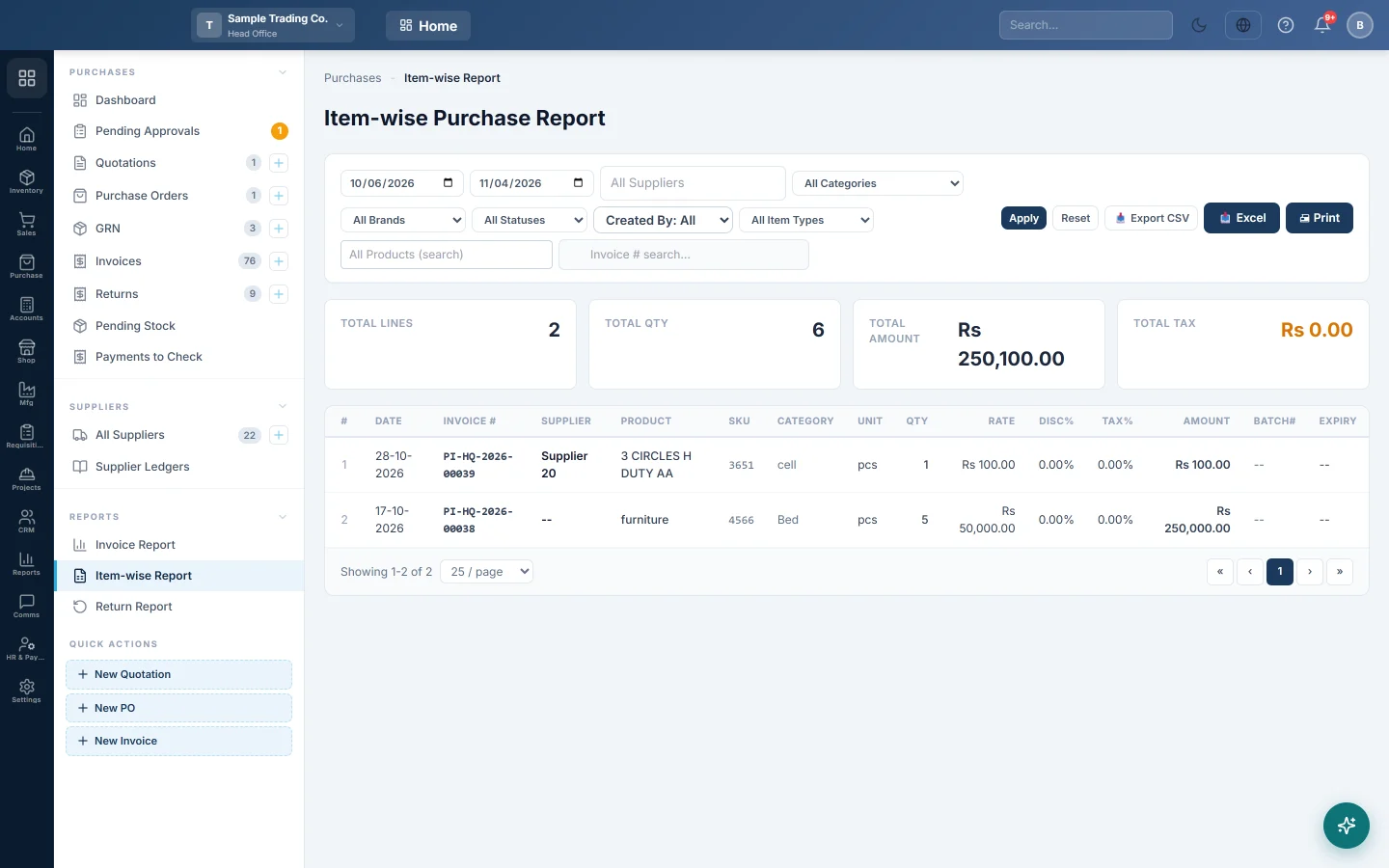
- Narrow it as needed: a supplier, a category, All Brands, a status or a Created By user.
- To follow one product, type it in All Products (search). To find one bill, use Invoice # search....
- Click Apply. Reset puts the filters back.
The cards show Total Lines, Total Qty, Total Amount and Total Tax. Each row shows the Date, Invoice #, Supplier, Product, Category, Unit, Qty, Rate, Disc%, Tax%, Amount, Batch# and Expiry.
Export or print
Click Export CSV, Excel or Print.
Common questions
How do I see the last price I paid for a product? Search the product and look at the newest rows. Each row's Rate is the price on that bill.
What is the Item Type filter? It shows only to users allowed to see internal items. It picks Saleable, Store-Consumable or Fixed-Asset items. Everyone else sees saleable items only.
Are returns taken off? No. This report shows what was bought. See the Return Report for what went back.
Спасибо. Если помощь всё ещё нужна, напишите на info@eloerp.net.