Invoice Report
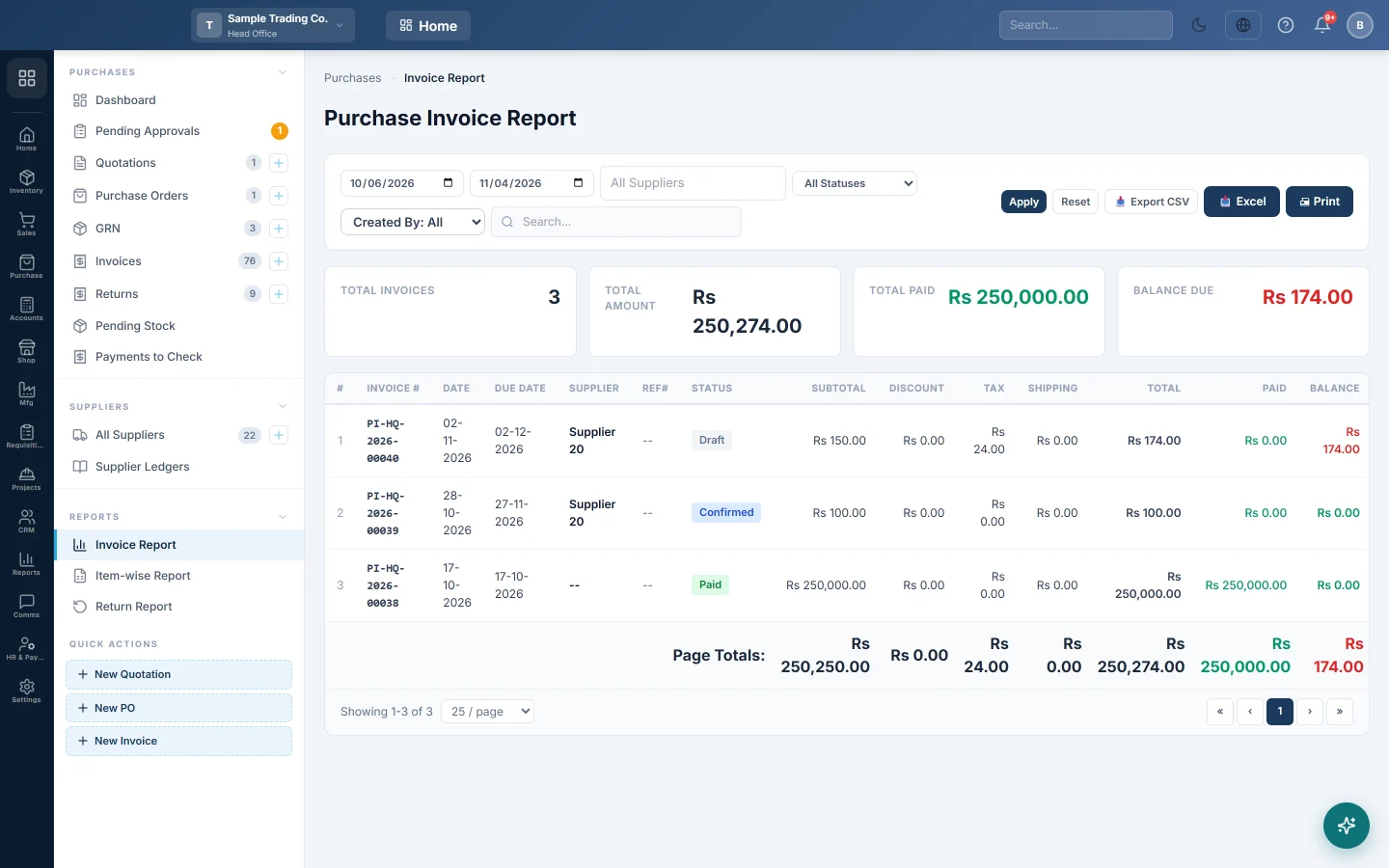
List purchase invoices for a period with their discount, tax, shipping, paid amount and balance, filtered by supplier, status or user.
The Purchase Invoice Report lists your purchase bills for a period, one row each, with what was paid and what is still owed.
Before you begin
- The report shows the branch you are working in. Switch branch in the top bar to see another.
- Your role needs the purchase invoice report permission, see Users & Roles.
Where to find it
Open Purchases → Reports → Invoice Report.
Run the report
- Set the from and to dates.
- Pick a supplier, or leave All Suppliers.
- Pick a status, a Created By user, or type in Search... if you need to narrow it.
- Click Apply. Reset puts the filters back.
The cards show Total Invoices, Total Amount, Total Paid and Balance Due. Each row shows the Invoice #, Date, Due Date, Supplier, Ref#, Status, then Subtotal, Discount, Tax, Shipping, Total, Paid and Balance. The last row adds up the page.
Export or print
Click Export CSV, Excel or Print.
Common questions
Why are my drafts missing? With All Statuses, the report shows confirmed, part-paid and paid invoices only. Pick Draft or Cancelled in the status box to see those.
What is Ref#? The supplier's own bill number, entered as SUPPLIER INV # on the invoice.
I need what I owe each supplier, not each bill. Use Supplier Ledgers, or Payables Aging (AP) to see how old the amounts are.
I need the products, not the bills. Use the Item-wise Report.
Obrigado. Se ainda precisar de ajuda, escreva para info@eloerp.net.