Gaming Zone
Run a play area billed by time: set up stations, time packages and membership plans, watch live sessions and settle each one into a sale.
The Gaming Zone bills play by the clock. Each station (a console, VR rig, pool table or soft-play area) has an hourly rate. A session runs on a station until you settle it, and settling turns the play time plus any snacks into one sale.
Before you begin
- The gaming module is switched on for your company. If Gaming Zone is missing from Sales → POS, ask your EloERP provider to turn it on.
- Your role has Access Gaming Terminal / Module. Setting up needs Manage Game Stations and Manage Gaming Packages; billing needs Settle Gaming Session (posts sale + GL). See Users & Roles.
- For a dedicated gaming till, set the outlet's POS Type to Game Zone in Outlets. The POS Terminal then shows a Gaming tab.
- Snacks and token packs you sell with play are ordinary products, see All Products.
Where to find it
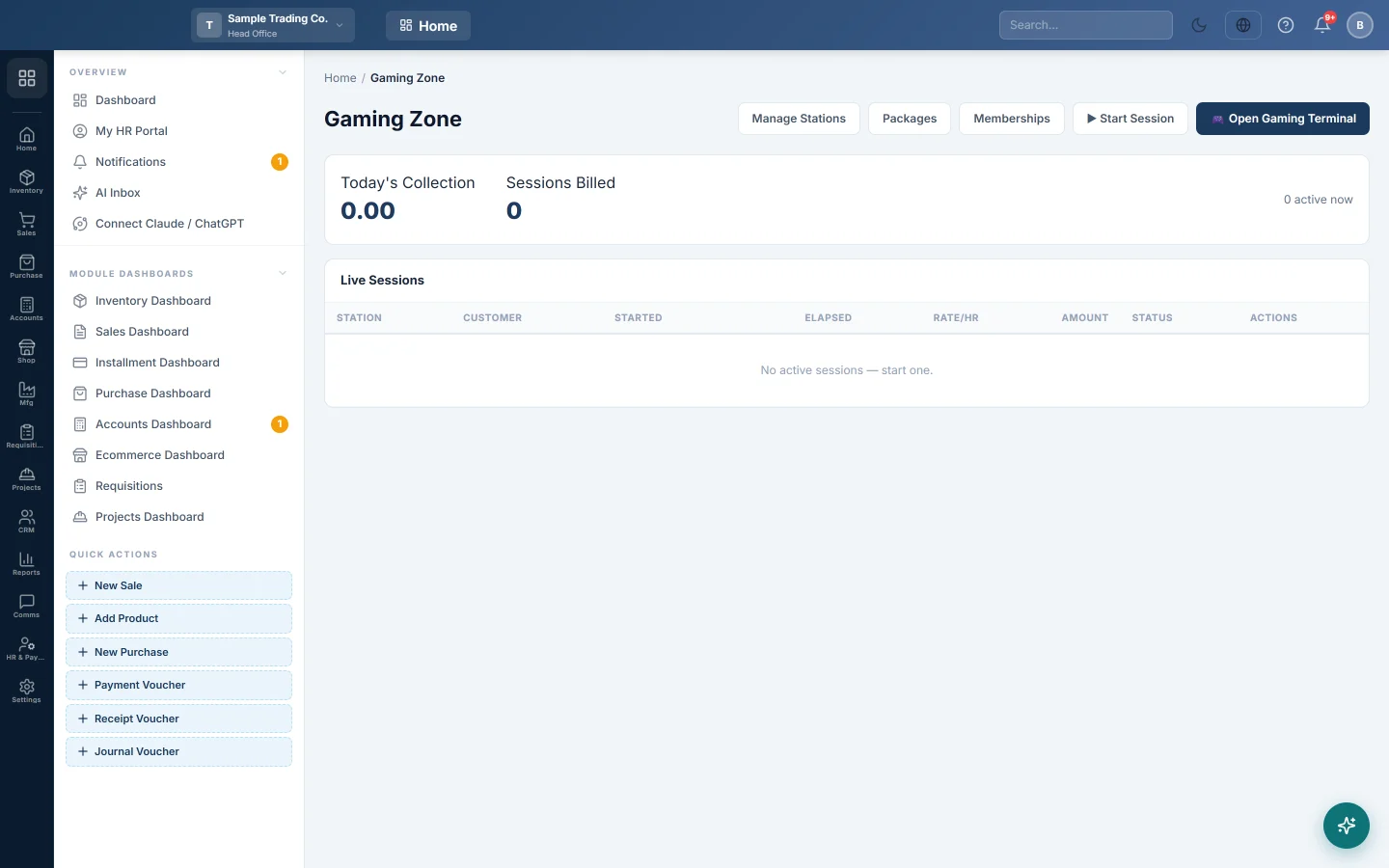
Open Sales → POS → Gaming Zone. This is the back-office page. Sessions are started on the till: click Open Gaming Terminal, or open the Gaming tab on the POS Terminal.
The page shows Today's Collection, Sessions Billed and how many sessions are active now, above the Live Sessions list.
Add your stations
- Click Manage Stations.
- Under Add Station, type the name, for example PS5 Booth 1, and pick the type: Console, VR, Racing, Pool / Snooker, PC, Soft play or Other.
- Type the Base rate/hr.
- For busy hours, type a Peak rate, an Off-peak rate and the Peak from (HH:MM) and Peak to (HH:MM) times. Leave them empty for one rate all day.
- Type a Min charge if every session pays at least that much.
- Click Add.
The station list shows each station's rate and whether it is available or busy.
Add time packages
Packages are prepaid passes, for example a 1 Hour Pass for 60 minutes at Rs 500.
- Click Packages.
- Under Add Package, type the name, the minutes and the price.
- Click Add. The ✕ on a row deletes a package.
Add membership plans
Members get a discount on play and bonus credit on their game card for a number of days.
- Click Memberships.
- Under Add Plan, type the name, Price, Days, Disc % and Bonus.
- Click Add.
Plans are sold to a game card on the Gaming Terminal under Game cards.
Run a session on the Gaming Terminal
- Click Open Gaming Terminal. Free stations show Available and tap to start.
- Click a free station, or ▶ Start session.
- Pick the Billing mode. Open meter charges the hourly rate for the time played. Prepaid block sells a Package, or a custom number of Minutes for a Price.
- Type the customer's name if you like, then click Start.
- While it runs, click the station to + Add time, ⏸ Pause, ⇄ Transfer to another station, or + Snacks.
- When the customer is done, click 💳 Settle & print.
Paused time is not charged. On a prepaid block, time played past the block is charged at the hourly rate.
Stop and settle a session
On the Live Sessions list here, or on the terminal:
- Click Stop to end the clock. The station becomes free and the amount is fixed.
- Click Settle. Settle & Bill shows the Play Time charge.
- Search and click products to add snacks or token packs. Change a quantity in its row.
- Check the Grand Total and pick the Payment Method: Cash, Card or Bank. The terminal also offers Game card, which takes the amount from the customer's card balance.
- Click Settle & Bill → Accounts (on the terminal, Settle & post).
Settle also stops a running session, so you can skip Stop.
What happens in the books
Settling posts one cash sale through the POS, with the reference GAME- and the session number:
- The play time is a line called Gaming Time, and each snack is its own line. Snacks leave stock as usual.
- Sales Revenue is credited and the payment method's account, such as Cash in Hand, is debited.
- The sale joins the cashier's open shift, so it counts on the X-Report (Mid-Shift) and Z-Report (End of Shift).
- A game-card payment also takes the amount off the card's credits, then its bonus, and moves it out of the card balance account.
- A game card used on the sale earns 1 point for every 100 billed.
Common questions
How do I start a session from this page? Sessions start on the Gaming Terminal. Click Open Gaming Terminal, then a free station.
A station shows as busy but nobody is playing. A session is still open on it. Find it under Live Sessions and click Stop or Settle.
Why did a short session cost more than the time played? The station has a Min charge, or a minimum number of minutes, so short sessions pay the minimum.
Which rate does a station use? Inside the peak hours it uses the Peak rate; outside them the Off-peak rate, or the base rate if none. You can also type a different Hourly rate when you start an open-meter session.
The game card does not cover the bill. The terminal says how much the card covers and that the rest will be cash. Take the remaining amount in cash.
Can I change or delete a station? Not from this page today. The list shows the stations only; ask your EloERP provider to change one.
Merci. Si vous avez encore besoin d’aide, écrivez à info@eloerp.net.