Outlet Sales Summary
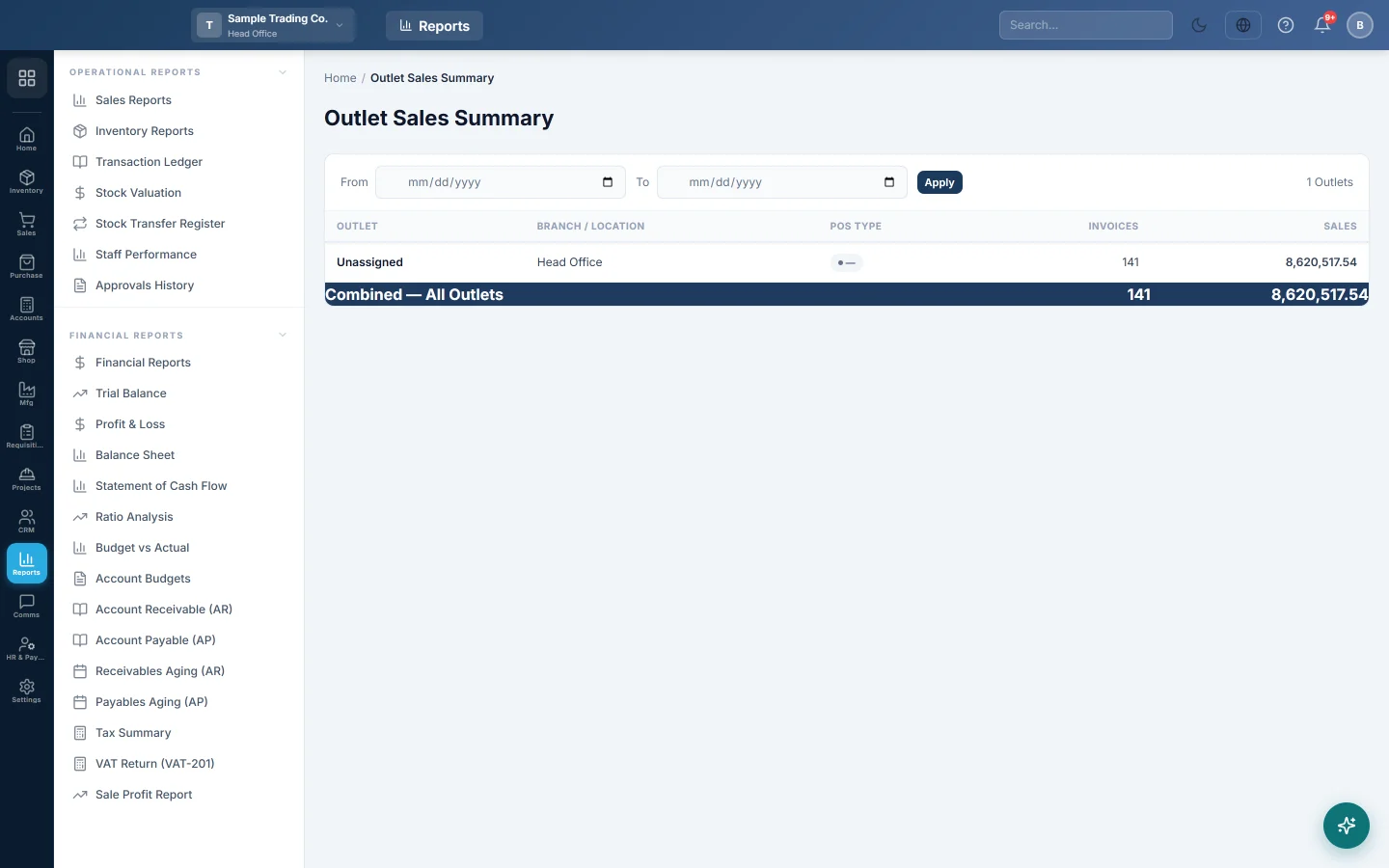
One line per outlet with its branch, POS type, number of invoices and sales, plus a combined total for the whole company.
The Outlet Sales Summary shows how much each outlet sold, side by side, with one combined total. It is an owner's view across the whole company, for businesses that run several outlets such as a restaurant, a café and a shop in one place.
Before you begin
- Set up your outlets first. See Outlets.
- The report covers every branch and outlet of the company, whichever branch you are working in.
Where to find it
Open Sales → Reports → Outlet Sales Summary.
Run the report
The page opens with no dates and shows all sales to date.
- Set From and To.
- Click Apply.
The count of outlets shows at the top right.
Read the figures
Each row shows Outlet, Branch / Location, POS Type (Retail, Restaurant or Game Zone), Invoices and Sales. Rows are sorted by Sales, highest first. The dark last row, Combined — All Outlets, adds up every row.
- Sales is the total of the invoices, with tax and charges.
- Every invoice that is not cancelled is counted.
- Sales made before outlets were set up, or without an outlet, show as Unassigned.
An outlet that works in two branches shows one row per branch.
Common questions
Why is there an Unassigned row? Those invoices have no outlet, for example sales made before you turned on outlets. They still count in the combined total.
Why is the total higher than the Sale Invoice Report? This summary counts every invoice that is not cancelled, across all branches. The Sale Invoice Report counts confirmed, part-paid and paid invoices only.
Can I export it? There is no Excel or Print button on this page. For a printable list per outlet, switch to the outlet and use the Sale Invoice Report.
Where do I see each outlet's products? Switch to the outlet and use Item-wise Sales.
Vielen Dank. Wenn Sie weitere Hilfe brauchen, schreiben Sie an info@eloerp.net.