Item-wise Sales
See every product line you sold in a period, with customer, quantity, rate, discount and tax, or add it up by category, brand or size.
The Item-wise Sale Report lists each product line on your confirmed sale invoices. Use it to see what you sold, to whom and at what rate, or to add up sales by category, brand or size.
Before you begin
- Only confirmed, part-paid and paid invoices are counted. Drafts and cancelled invoices are left out.
- The report shows the branch you are working in. Switch branch in the top bar to see another.
- Your role needs View Item-wise Sales Report and View Sale Invoice Report. Your administrator sets these in Users & Roles.
Where to find it
Open Sales → Reports → Item-wise Sales.
Run the report
The report opens for your company's default date range and loads by itself.
- Set the from and to dates.
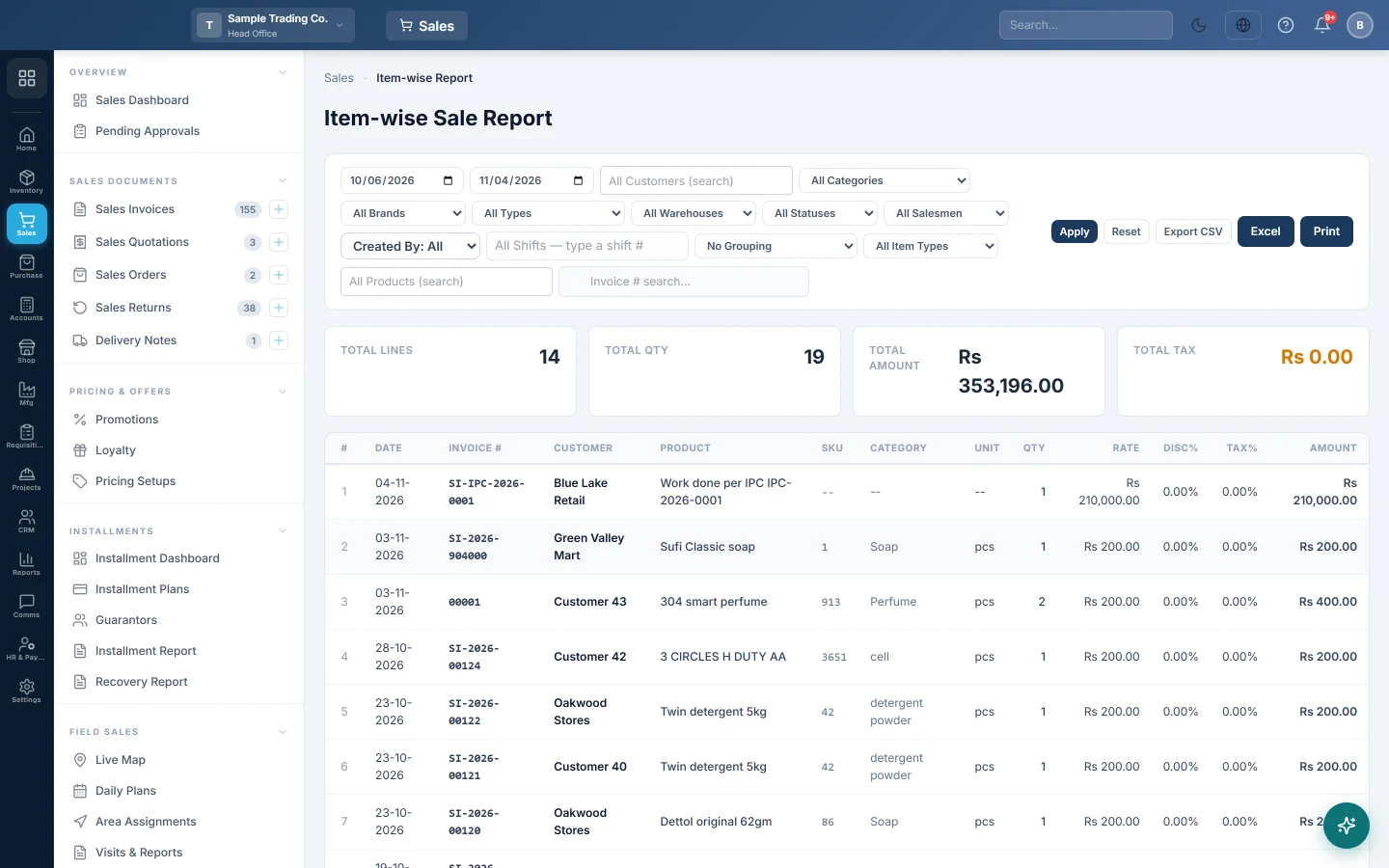
- Narrow it as needed: All Customers (search), a category, All Brands, an invoice type, All Warehouses, a status, All Salesmen, Created By: All or a shift.
- To follow one product, type it in All Products (search).
- Type in Invoice # search... to find an invoice. It also matches a product name, SKU, customer or batch number.
- Click Apply.
Picking a category includes its sub-categories.
The cards show Total Lines, Total Qty, Total Amount and Total Tax. Each row shows the Date, Invoice #, Customer, Product, SKU, Category, Unit, Qty, Rate, Disc%, Tax% and Amount. The TOTALS row adds up every matching line, not only this page.
For a product with variations or several units, SKU and Unit show the size or unit that was actually sold, for example Blue / Large or Box.
How Amount is worked out
Amount is the line value as it is on the invoice:
Qty × Rate − line discount + line tax
A discount given on the whole invoice is not spread over the lines, so the report total can be higher than the invoice totals. For example, 10 units at Rs 100 with 5% discount and 18% tax: Rs 1,000 − Rs 50 + Rs 171 = Rs 1,121.
Add it up by category, brand or size
- Open the No Grouping box.
- Pick Group by Category, Group by Brand or Group by Unit / Variation.
- Click Apply.
Each row then shows the group with Products (or SKU for unit / variation), Qty, Discount, Tax and Amount, largest first. Group by Unit / Variation answers questions like "how many of size Large did we sell", which a product total cannot.
Export or print
Click Export CSV, Excel or Print. Export CSV and Excel take every matching line. The CSV also has Brand, Disc Amt, Tax Amt, Batch# and Variant.
Common questions
Why does Reset not clear my product? Reset clears the dates, customer, category, brand, type, warehouse, status, item type and shift. Clear All Products (search), salesman, Created By and grouping yourself.
Are returns taken off? No. This report shows what was sold. See the Sale Return Report for what came back, or the Profitability Report for sales net of returns.
What is the Item Type box? It shows only to users allowed to see internal items. It picks Saleable, Store-Consumable or Fixed-Asset items. Everyone else sees saleable items only.
Jewellery: what are Weight, Karat, Metal and Making? They appear when a line was sold by weight. Metal is the weight at the rate of the day, Making is the making and polish charge. The cards then add Metal Value and Making & Polish.
I need a ranked list of best sellers. Use Top Selling Products.
Merci. Si vous avez encore besoin d’aide, écrivez à info@eloerp.net.