Setup
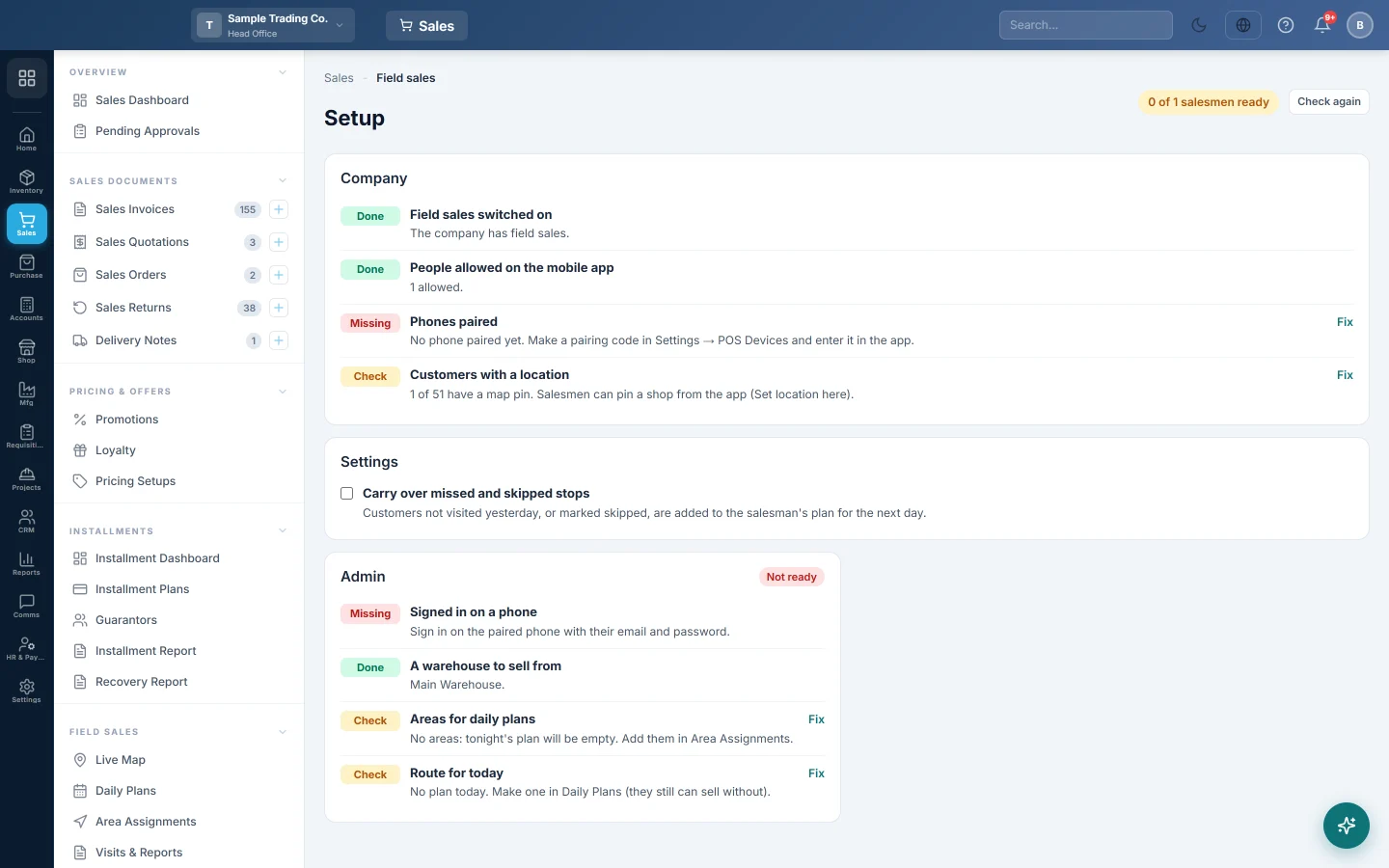
A checklist of what is still missing before each salesman can work from the phone app: the company switch, users, paired phones, warehouses, areas, map pins and today’s route.
The field sales Setup page checks everything a salesman needs before they can sell from the phone, and shows what is still missing. Each line that needs work has a Fix link to the screen that fixes it.
Before you begin
- Your role needs the View Field Sales Route Plans permission, see Users & Roles.
- The page only reads. It changes nothing.
Where to find it
Open Sales → Field Sales → Setup.
Read the checklist
Each line shows Done, Check or Missing. A salesman with no Missing line is Ready. The pill at the top counts how many salesmen are ready. Click Check again after you fix something.
Company
| Check | What it needs |
|---|---|
| Field sales switched on | Field sales on for your company. If it is missing, ask your service provider to switch it on. |
| People allowed on the mobile app | At least one user with Allow mobile app login ticked, see Users & Roles. |
| Phones paired | At least one phone paired in POS Devices: make a pairing code there and enter it in the app. |
| Customers with a location | How many customers have a map pin. Salesmen can pin a shop from the app with Set location here. |
Each salesman
| Check | What it needs |
|---|---|
| Signed in on a phone | The salesman has signed in on a paired phone with their email and password. |
| A warehouse to sell from | A warehouse they may sell from, set on their user. |
| Areas for daily plans | Areas in Area Assignments. Without them tonight's plan is empty. |
| Customers assigned | Shown when customer assignment is on. With none assigned they see every customer. |
| Their customers on the map | How many customers in their areas are pinned. Unpinned stops get no distance or ordering. |
| Route for today | A published plan in Daily Plans. They can still sell without one. |
| Cash register | Shown when the user has a cash register: they open a shift on the phone before taking cash. |
Get a salesman ready
- Tick Allow mobile app login on the salesman's user and give them a warehouse.
- Pair a phone and sign the salesman in on it.
- Give them areas and days in Area Assignments.
- Make and publish tomorrow's route in Daily Plans.
- Come back and click Check again.
Common questions
A salesman is not on the page. Only active users with Allow mobile app login are listed. Tick it on their user.
Phones paired shows full. Your plan allows a set number of phones. Revoke an old phone in POS Devices, or ask your service provider for more.
Route for today says Check, but the salesman has a plan. The plan is still a draft. Click Publish to phone on it in Daily Plans.
Vielen Dank. Wenn Sie weitere Hilfe brauchen, schreiben Sie an info@eloerp.net.