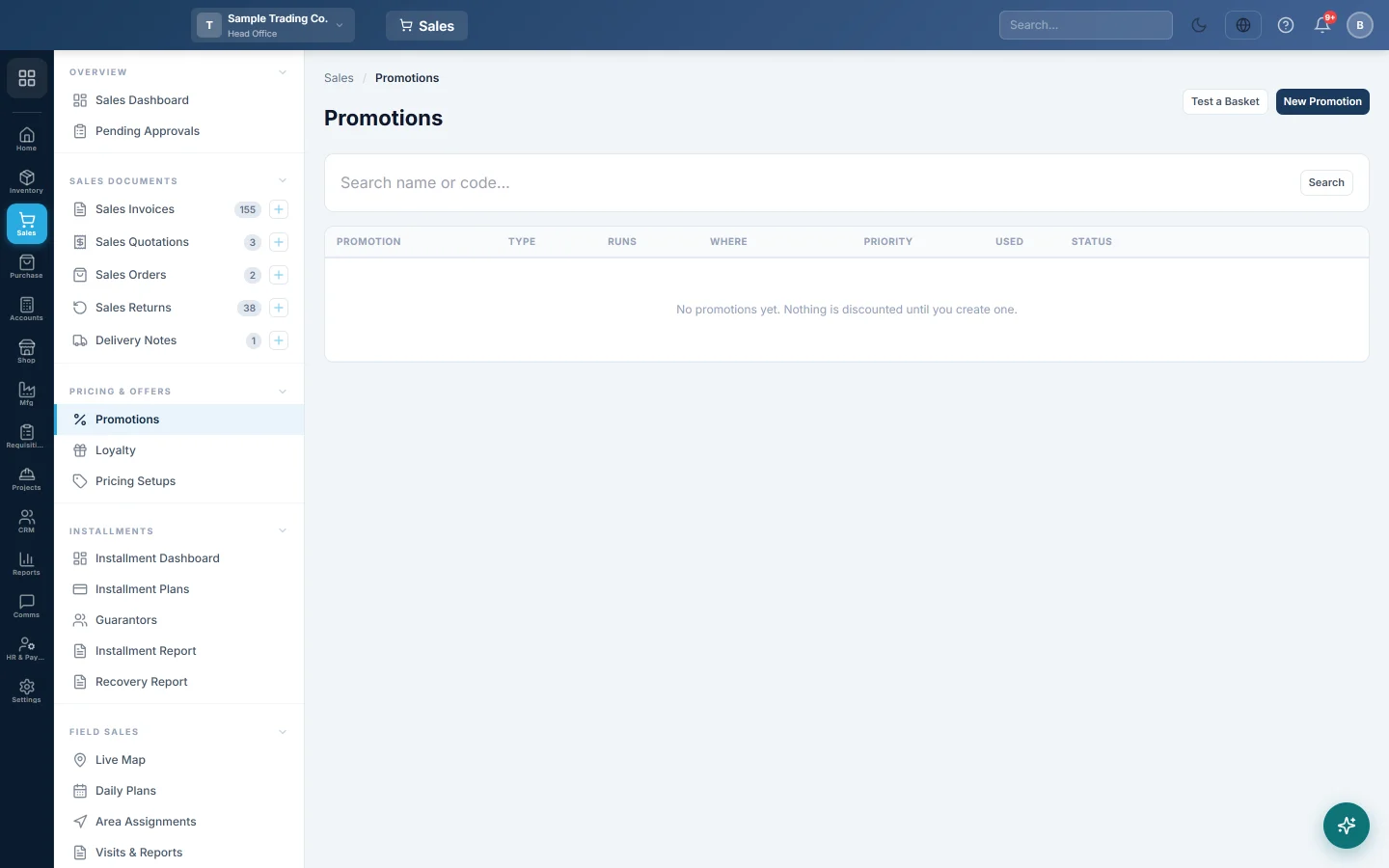
Promotions
Set up offers such as percent off, buy X get Y, a fixed price or an amount off the basket, limited by date, time, day, branch and channel.
Promotions are offers that lower the price automatically when a matching item is sold, for example 10% off a brand or buy two get one free. Nothing is discounted until you create one.
Before you begin
- Your role needs the manage promotions permission. See Users & Roles.
- The products, Categories and Brands you want to discount exist.
- A promotion works on top of the customer's price, so set up Price Lists first if you use them.
Where to find it
Open Sales → Pricing & Offers → Promotions.
Create a promotion
- Click New Promotion.
- Under What kind of offer?, pick Percent off, Amount off each, Fixed price, Buy X get Y or Amount off basket.
- Type a Name, such as Weekend Bread Offer. The cashier sees this name on the discounted line.
- Under What does it apply to?, choose Applies to: One product, A category, A brand or Everything, and pick which one.
- Enter the offer itself: the Percent off, the Amount off each, the Sell at price or the Amount off basket. For Buy X get Y, see below.
- Optionally set a Minimum spend for the basket and a Max per basket.
- Click + Add another rule to cover more products or categories in the same offer.
- Under When does it run?, set From date, To date and, for a happy hour, From time and To time.
- Pick a Branch, or leave All branches.
- Tick the Days and Channels it runs on. None ticked means every day and every channel.
- Under Alongside other promotions, set the Priority and choose whether it Can stack with other promotions.
- Optionally set Total uses. Leave Active ticked.
- Click Save.
Buy X get Y
Type how many the customer must Buy and how many they Get. In They get, choose The same item, A specific product or Any item in a category. Discount % is how much off the free items: 100 means free, 50 means half price.
The basket must hold the free item too. Buy 2 get 1 on a basket of exactly 2 gives nothing; the cheapest qualifying units are the ones discounted.
Where promotions apply
| Channel | Used for | How it prices |
|---|---|---|
| Till (POS) | Sales at the online till | The whole basket, with or without a customer. |
| Sale invoice | Sale invoices and other sale documents | One line at a time. |
| Online shop | Shop orders | The whole cart. |
A promotion with channels ticked runs only on those channels. With none ticked, it runs on all three.
Check a promotion before customers see it
- Click Test a Basket.
- Add products with their Qty and Unit price.
- Click Price this basket.
Each line shows the promotion that applied and the new price. The bottom line shows what the Customer saves. The test prices the basket as the till would, at your current branch and the time now.
Pause, change or delete
- Pause stops a promotion at once; Resume starts it again.
- Edit opens the promotion. Changes apply to the next sale.
- Delete removes it. Sales already made keep the price they were sold at.
The Status column shows live, scheduled (starts later), expired (end date passed) or inactive (paused). Status looks at dates only, not days or times.
Used goes up by one for each line the promotion discounted on a till sale, a confirmed sale invoice or a shop order. A sale invoice counts once, when it is confirmed. Once Used reaches Total uses, the promotion stops.
How promotions combine
Promotions run in Priority order, lowest number first. A promotion that cannot stack claims the items it discounts, so no later promotion discounts them again. Tick Can stack with other promotions on both offers when they should add up.
What happens in the books
A promotion only lowers the selling price on the sale line. The invoice posts as usual, at the discounted price. See Sales Invoices.
Good to know
- The offline till applies no promotions. Its sales are sold at the normal price.
- A sale invoice prices each line on its own. Buy X get Y, Amount off basket and Minimum spend need the whole basket, so tick only Till (POS) and Online shop for them.
- A price the cashier types by hand stays as typed.
- Receipt code is saved with the promotion and you can search the list by it. It is not printed on the bill yet.
Common questions
My promotion did not apply. Check that it is live, that today's day, time and branch are allowed, and that the channel is ticked. Check the basket reaches the Minimum spend, then try it in Test a Basket.
Does a walk-in customer get the offer? Yes. At the online till, promotions apply with or without a customer.
Can a promotion run only at the till? Yes. Under Channels, tick only Till (POS). It then never prices a sale invoice or a shop order.
Why did only one of my two offers apply? The first one by priority cannot stack, so it claimed the items. Tick Can stack with other promotions on both, or change the priority.
Can I limit an offer to the first 100 uses? Set Total uses to 100. Each discounted line counts as one use. Leave it blank for no limit.
Спасибо. Если помощь всё ещё нужна, напишите на info@eloerp.net.