Sales Quotations
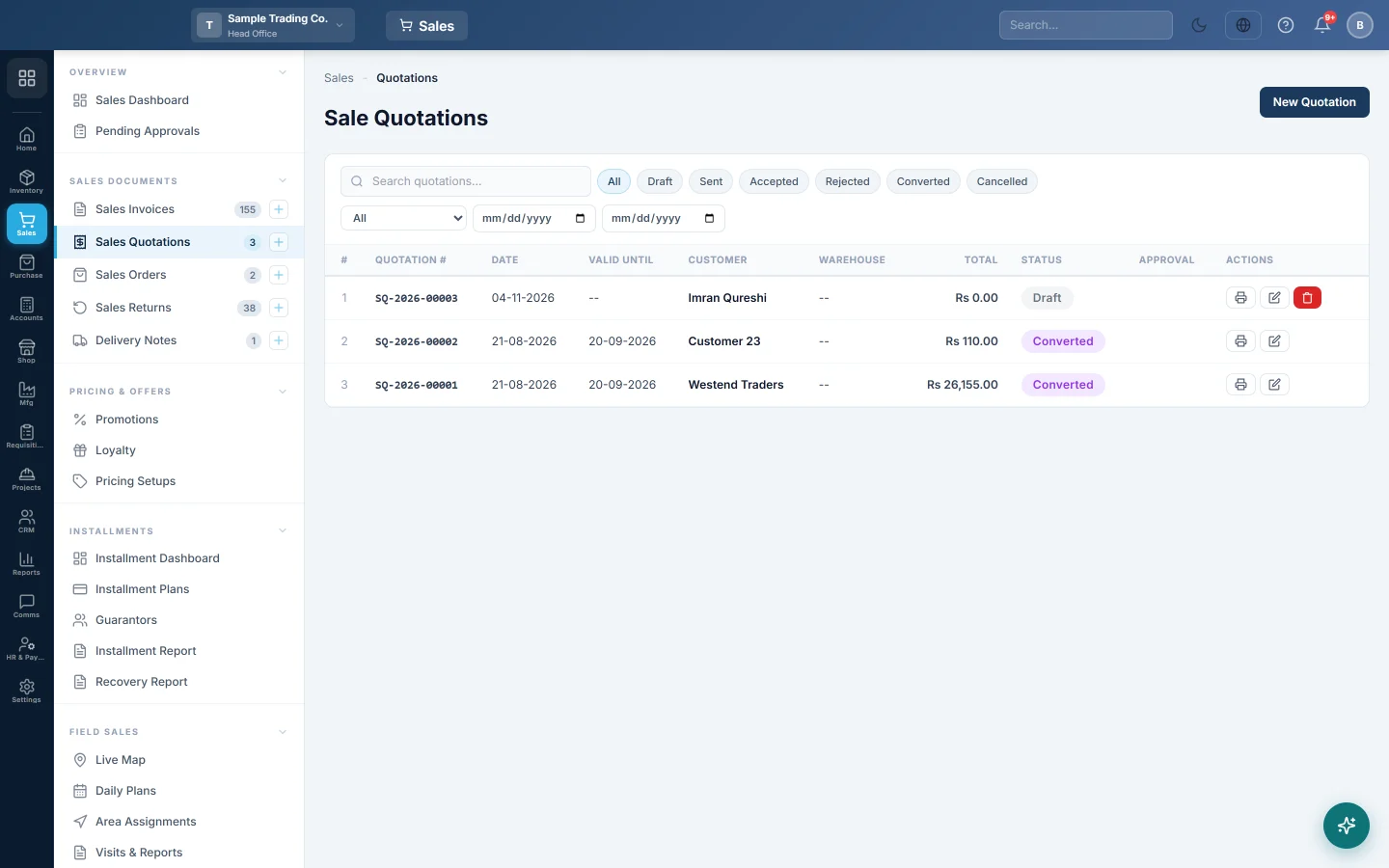
Give a customer a priced offer, mark it sent and accepted, then turn it into a sale order or an invoice without typing it again.
A sales quotation is a priced offer to a customer. It changes nothing in stock or the books. When the customer agrees, you convert it into a sale order or an invoice with the same lines.
Before you begin
- The customer exists. See All Customers.
- The products exist with a sale price. See All Products.
- Quotations are part of your package. If the menu item is missing, your plan does not include them.
- Your role needs the sale quotation permissions; converting needs the quotation convert permission. See Users & Roles.
Where to find it
Open Sales → Sales Documents → Sales Quotations. The side menu also has a New Quotation quick action.
Make a quotation
- Click + New Quotation.
- Click the CUSTOMER box and pick the customer. The + button adds a new one.
- Check the DATE and set VALID UNTIL, the last day the prices hold.
- Optionally type the customer's enquiry number in CUSTOMER REFERENCE and pick the WAREHOUSE.
- In Items, add each product with its quantity and price. Discount and tax are set per row.
- Add a Discount or Freight / Shipping below the items if they apply.
- Write your delivery and payment terms on the Terms & Conditions tab.
- Click Save Draft, or Save & Print to print it straight away.
The QUOTATION NO shows the next number; the final number is given when you save.
Send and accept
- Open the draft quotation.
- Click 📤 Send once you have given it to the customer. Its status becomes Sent.
- When the customer agrees, click ✓ Mark Accepted.
You can still click Update on a sent quotation to change it. Print is on every quotation.
Quotations that need approval
When the total is at or above the Sale Quotation approval threshold in Sales Preferences, a banner says it must be approved. An approver clicks ✓ Approve on the quotation, or approves it on Pending Approvals. Until then it cannot be accepted or converted.
Convert it to an order or invoice
- Open a sent or accepted quotation.
- Click 📋 Convert to Order if you will deliver later, or 📄 Convert to Invoice to bill now.
- EloERP opens the new order or invoice as a draft, with the customer, warehouse and lines copied.
- Check it, then save and confirm it as usual. See Sales Orders or Sales Invoices.
The quotation is marked Converted and can no longer be changed. The list has the same two convert buttons on each sent or accepted row.
Cancel or delete
- ✗ Cancel keeps the quotation but marks it Cancelled. A converted quotation cannot be cancelled.
- Delete removes a draft quotation for good.
Common questions
Does a quotation reserve stock? No. Stock moves only when the invoice, or its delivery note, is confirmed.
The convert buttons are missing. The quotation is still a draft. Click 📤 Send first.
Conversion says items are no longer saleable. A product on the quotation has since been switched off for sale. Edit the quotation, remove or replace that line, and convert again.
The invoice from my quotation has a tax I did not add. An invoice made from a quotation starts with your active sale invoice taxes ticked. Untick any that do not apply before you confirm.
Does VALID UNTIL stop the quotation? No. It is printed for the customer. You can still convert a quotation after that date.
谢谢。 如果仍需帮助,请发邮件至 info@eloerp.net。