Min Stock Level
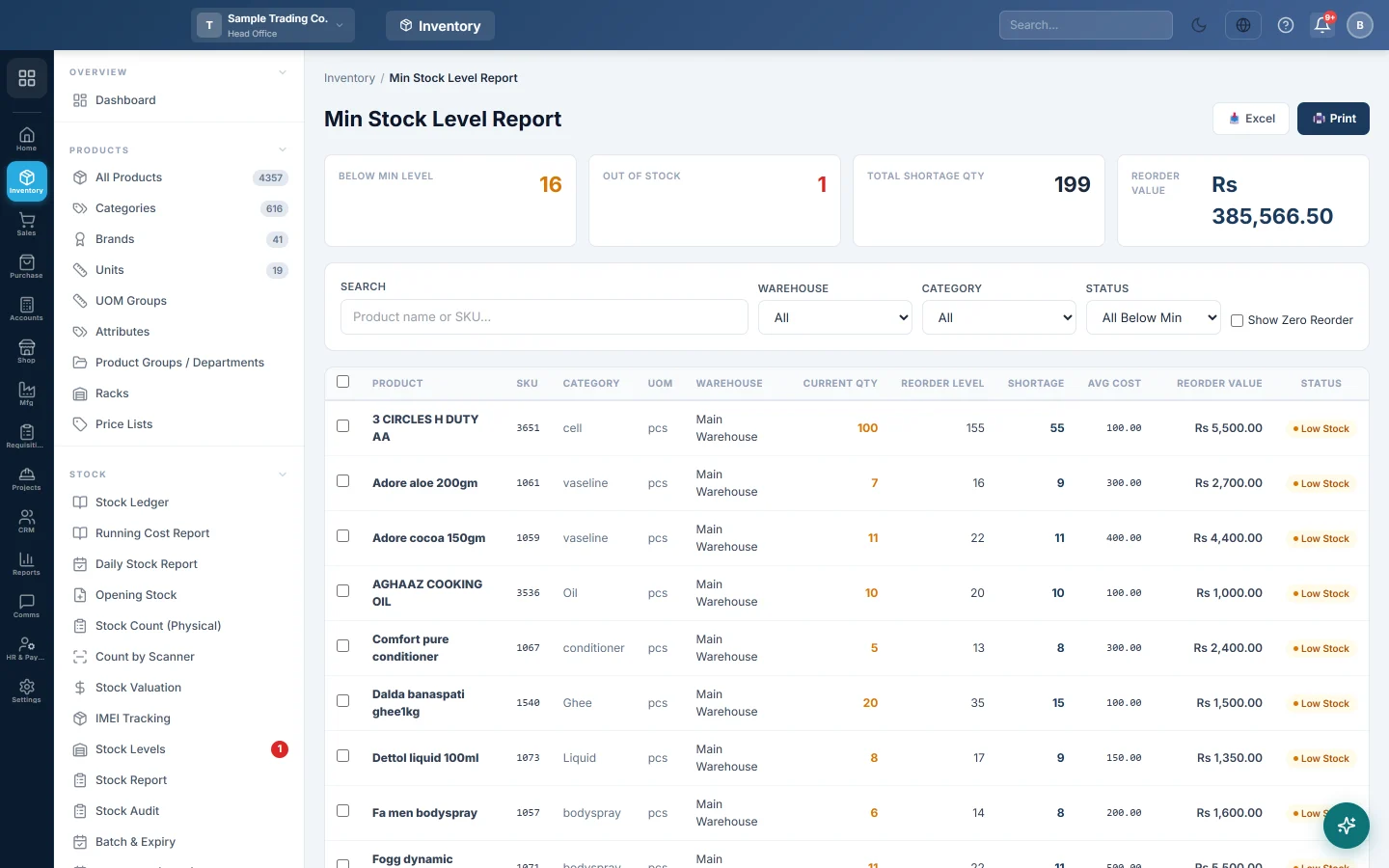
Products whose stock has fallen below their reorder level, with the shortage and its cost, and a quick way to turn them into a purchase order.
The Min Stock Level Report lists the products you need to buy again. Each product appears when its stock is below the reorder level you set, with the shortage and what it costs to refill.
Before you begin
- Set a Reorder Level on each product, in Stock Management on the product form. See All Products.
- A variant can have its own Reorder Level in the product's variants table. Blank means the product's level applies.
- Your role needs the min stock permission. See Users & Roles.
Where to find it
Open Inventory → Stock → Min Stock Level. The page heading reads Min Stock Level Report.
Find what to reorder
- Open the page. It lists every product below its reorder level in your branch.
- Optional: type in Search to find a product by name or SKU.
- Optional: pick a Warehouse or a Category. A category includes its sub-categories.
- Optional: pick a Status: Out of Stock, Critical (<25%) or Below Min Level.
Read the report
The cards at the top:
- Below Min Level: how many products are short.
- Out of Stock: how many have nothing left.
- Total Shortage Qty: the quantity needed to bring them all back to their levels.
- Reorder Value: the cost of that quantity.
The table:
| Column | Meaning |
|---|---|
| Current Qty | Stock on hand, added up across the branch's warehouses. |
| Reorder Level | The level you set. |
| Shortage | Reorder Level − Current Qty. |
| Avg Cost | The average purchase cost. |
| Reorder Value | Shortage × Avg Cost. |
| Status | Out of Stock (zero or less), Critical (at or below a quarter of the level) or Low Stock. |
Warehouse shows Multiple when the product is held in more than one warehouse.
A product with a reorder level but no stock record at all is still listed as out of stock, as long as no warehouse is picked.
Create a purchase order from the list
- Tick the products you want to order, or tick the box in the header to select all.
- Click Create Purchase Order in the blue bar.
- A new purchase order opens with those products. The quantity is the shortage, and the rate is the average cost.
- Pick the supplier, check the lines and save. See Purchase Orders.
Export or print
- 📥 Excel saves the list.
- 🖨️ Print prints it in landscape with your filters.
Common questions
Why is a low product not listed? Its Reorder Level is 0 or blank, or its total stock in the branch is still at or above the level.
Stock is low in one warehouse but the product is not listed. The report adds up all the branch's warehouses. Pick the Warehouse to judge that warehouse alone.
How is a variant product shown? Variants with their own reorder level get their own row. The rest of the product is added together and judged against the product's level.
Why is the Reorder Value zero? The product has no average cost yet. Enter a purchase or set a Cost Price on the product.
Can I get an alert instead of opening this report? Yes, low-stock alerts can be switched on in Settings → Alerts. See Alerts.
谢谢。 如果仍需帮助,请发邮件至 info@eloerp.net。