Batch & Expiry
Stock per batch number with expiry dates, days left and value, so you can sell or return goods before they expire.
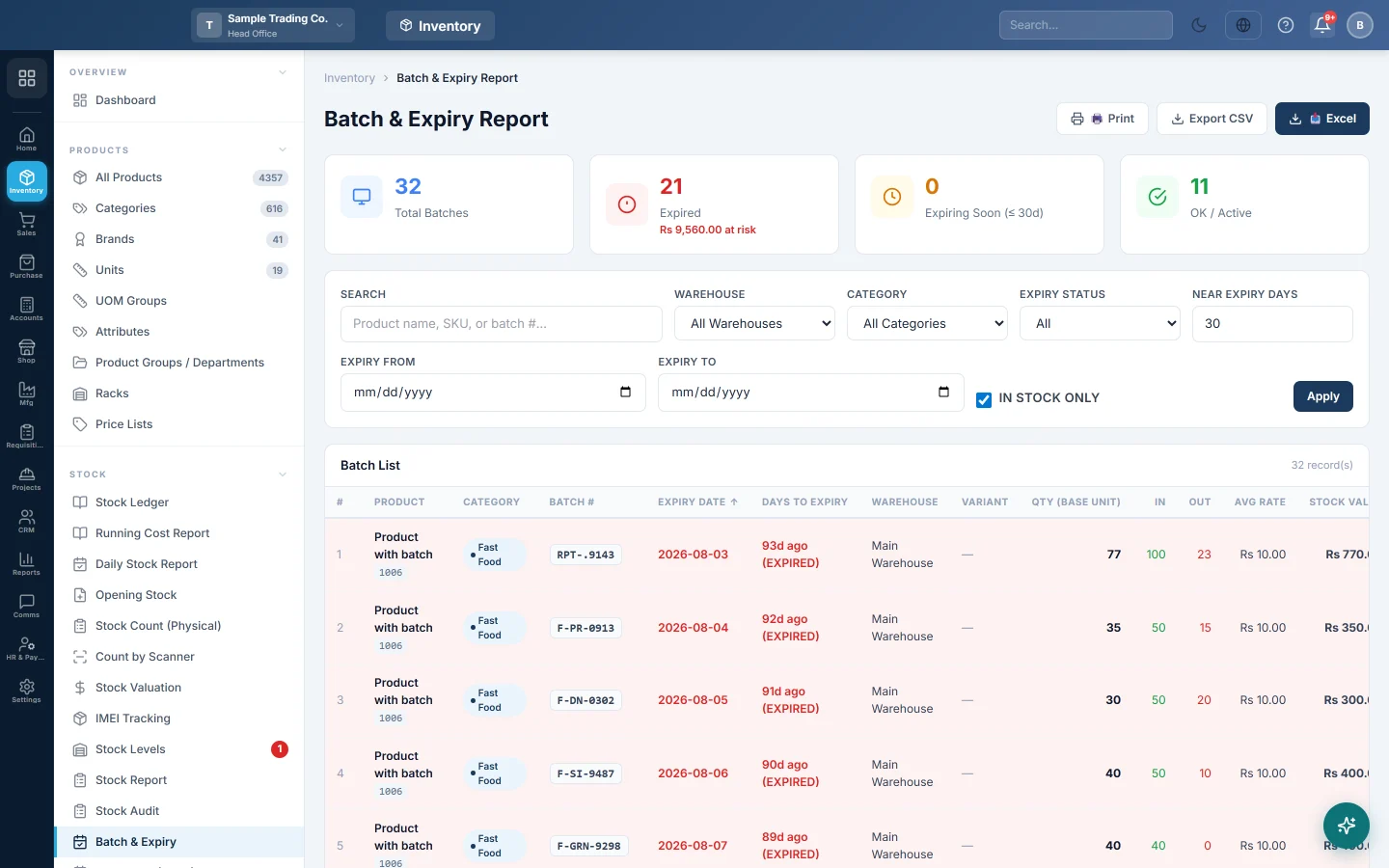
The Batch & Expiry report lists your stock batch by batch, with each batch's expiry date, days left and stock value. Use it to find expired and nearly expired goods while there is still time to sell them, move them or return them to the supplier.
Before you begin
- Turn on Batch / Expiry under Settings → Configuration → Features & Add-ons. See Features & Add-ons. The menu item stays hidden until you do.
- On each product, tick Enable Batch and, if it expires, Enable Expiry. See All Products.
- Enter the Batch # and Expiry on each line of your purchase invoices or GRNs.
- Your role needs permission to view the batch and expiry report.
Where to find it
Open Inventory → Stock → Batch & Expiry.
Read the summary
- Total Batches: batches that match your filters.
- Expired: batches past their expiry date, with the value at risk.
- Expiring Soon (≤ 30d): batches expiring within the Near Expiry Days you set, with their value.
- OK / Active: batches with more time left.
Read the batch list
| Column | What it shows |
|---|---|
| Product, Category | The item, its SKU and category. |
| Batch # | The batch number from the purchase. |
| Expiry Date | Red if expired, amber if expiring soon, green if OK. |
| Days to Expiry | Days left, Expires TODAY, or days ago with (EXPIRED). |
| Warehouse, Variant | Where the batch is held and which variation it is. |
| Qty (Base Unit) | Quantity left, in the product's smallest unit. |
| In, Out | Total received into and issued from the batch. |
| Avg Rate, Stock Value | Average cost of the batch and the value of what is left. |
| Status | Expired, Expiring Soon, OK or No Expiry. |
Expired rows are shaded red and expiring rows amber.
Find batches that need action
- Set Near Expiry Days to your warning window, for example 90.
- Choose Expiring Soon or Expired in Expiry Status.
- Pick a Warehouse or Category to narrow the list.
- Type a product name, SKU or batch number in Search.
- Enter Expiry From and Expiry To for a date range, then click Apply.
- Untick In Stock Only to include batches that are already used up.
- Click the Expiry Date, Days to Expiry, Qty (Base Unit) or Stock Value heading to sort.
Print or export
- Set the filters you want.
- Click Print, Export CSV or Excel.
Common questions
Why is a batch marked No Expiry? No expiry date was entered for that batch on the purchase. Tick Enable Expiry on the product and enter the date on future purchases.
Where does the expiry date come from? From the purchase invoice line that brought the batch in. If one batch number came in with two dates, the earliest is used.
What should I do with expired stock? Return it to the supplier with a purchase return, or write it off with a stock adjustment.
Can I see one batch's movements? Open the Stock Ledger for the product.
How is this different from Batch Lots (FEFO)? Batch Lots (FEFO) is for companies that use full lot tracking, where sales draw from the earliest-expiring lot automatically.
谢谢。 如果仍需帮助,请发邮件至 info@eloerp.net。