Price Lists
Set up price tiers such as Wholesale or Distribution, enter a tier price per product, import prices from CSV and add quantity breaks.
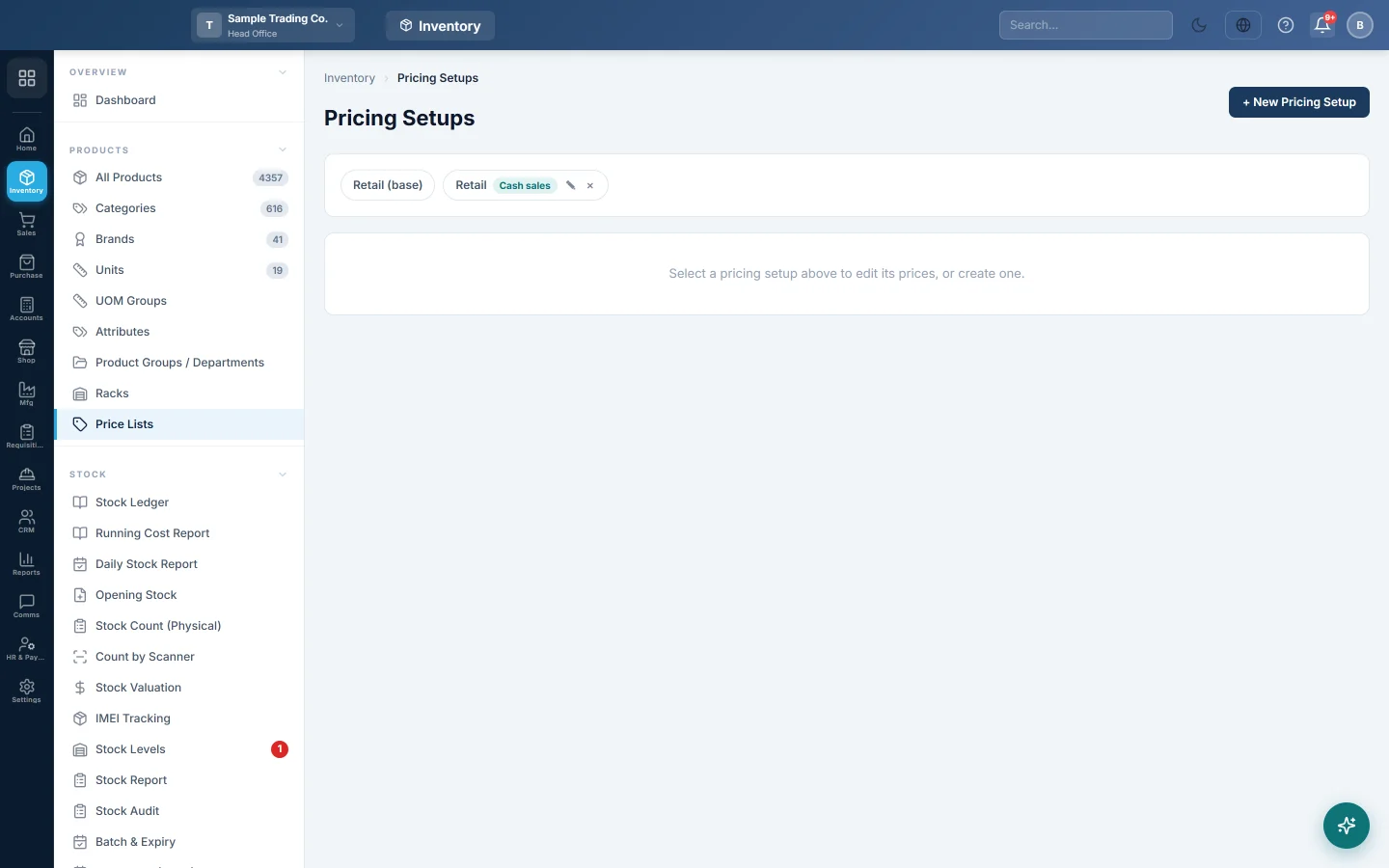
A price list (the screen calls it a pricing setup) is a second set of sale prices, such as Wholesale or Distribution. Each product keeps its normal sale price; a pricing setup holds a different price for the products you choose, and can also give a lower price for larger quantities.
Before you begin
- Your products must exist and be active, with a Sale Price on each. See All Products.
- Your role needs the price lists permission. See Users & Roles.
Where to find it
Open Inventory → Products → Price Lists. The page heading reads Pricing Setups.
How the tiers work
- Retail (base) is always there. It is not a separate list: it is each product's own Sale Price, set on the product.
- Every other chip at the top is a pricing setup you created, for example Wholesale.
- A product with no price in a setup sells at its Retail (base) price.
Create a pricing setup
- Click + New Pricing Setup.
- Type a Name, for example Wholesale.
- Optional: in Use for sale type, pick Cash sales, Credit sales or Installment sales. Leave None — pick it by hand if you will choose it yourself on each sale.
- Click Save. The new setup appears as a chip at the top.
Enter tier prices
- Click the setup's chip, for example Wholesale. The grid lists your active products.
- Use Search product / SKU… to find a product.
- Type the price in the Wholesale Price column. The Base (Retail) column shows the normal sale price for comparison.
- Click Save Prices.
Leave a tier price blank to use the Retail (base) price. A price of 0 is treated the same as blank.
Import tier prices from a CSV file
- Click the setup's chip.
- Prepare a CSV file with two columns,
sku,price. A header row is optional. - Click ⤓ Import CSV and choose the file.
- Read the message. It says how many prices were imported and how many SKUs were not found.
A row with an empty price removes that product's tier price, so it falls back to Retail.
Add quantity breaks
A quantity break gives a lower unit price when the customer buys more, for example Rs. 100 each, or Rs. 90 each from 6 pieces.
- Click the setup's chip.
- In the product's row, click + Add in the Qty Breaks column.
- Optional: type a Price for 1 and up. This is the same price as the product's tier price in the grid. Leave it blank to use the Retail (base) price.
- Click + Add break, then enter From quantity and Unit price. Repeat for each break.
- Check the Resulting price ladder box. It shows the price for each quantity band.
- Click Save Breaks. The button now shows the number of breaks.
A break must start at quantity 2 or more. Two breaks cannot start at the same quantity, and a break cannot cost more than the one below it. The screen explains the problem and keeps Save Breaks disabled until you fix it.
Rename or delete a setup
- Click ✎ on the chip to change its name or its sale type.
- Click × on the chip to delete it. All its prices are removed and those products sell at Retail (base) again.
Use a pricing setup on a sale
- On a sale invoice, pick the setup in Pricing Setup: above the items. See Sales Invoices.
- A setup linked to a sale type is picked by itself when you choose that sale type on a sale invoice or at the POS.
- You can give a customer a Default Pricing Setup on the customer form. See All Customers.
Common questions
Why does a product still sell at the normal price? It has no price in the chosen setup, so it falls back to Retail (base). Enter a price for it in the grid and click Save Prices.
Can I edit Retail prices here? No. Retail is each product's Sale Price. Change it on the product, or with bulk edit on All Products.
My CSV import says some SKUs were not found. The SKU in the file must match the product's SKU exactly. Check for extra spaces or a different code, then import again.
Why can I not save my quantity breaks? Each break must start at 2 or more, use a different starting quantity, and not cost more than the price below it. The red message names the problem.
What happens to old invoices if I change a tier price? Nothing. Saved invoices keep the prices they were made with. New prices apply to new documents.
Does the grid show every product? It shows active products, up to 1,000 at a time. Use the search box to reach a product that is not listed.
谢谢。 如果仍需帮助,请发邮件至 info@eloerp.net。