Attributes
Define the attributes (Color, Size, Material) and their values that you combine into product variants, such as a shirt in Red / Large.
Attributes are the options a product comes in, such as Color or Size, each with its values (Red, Blue; Small, Large). On a Product with Variants you pick attributes and EloERP creates one variant for every combination.
Before you begin
- Your role needs permission to view, create, edit or delete attributes. See Users & Roles.
- Decide the values once and keep them consistent, for example always XL, never Extra Large on some products.
Where to find it
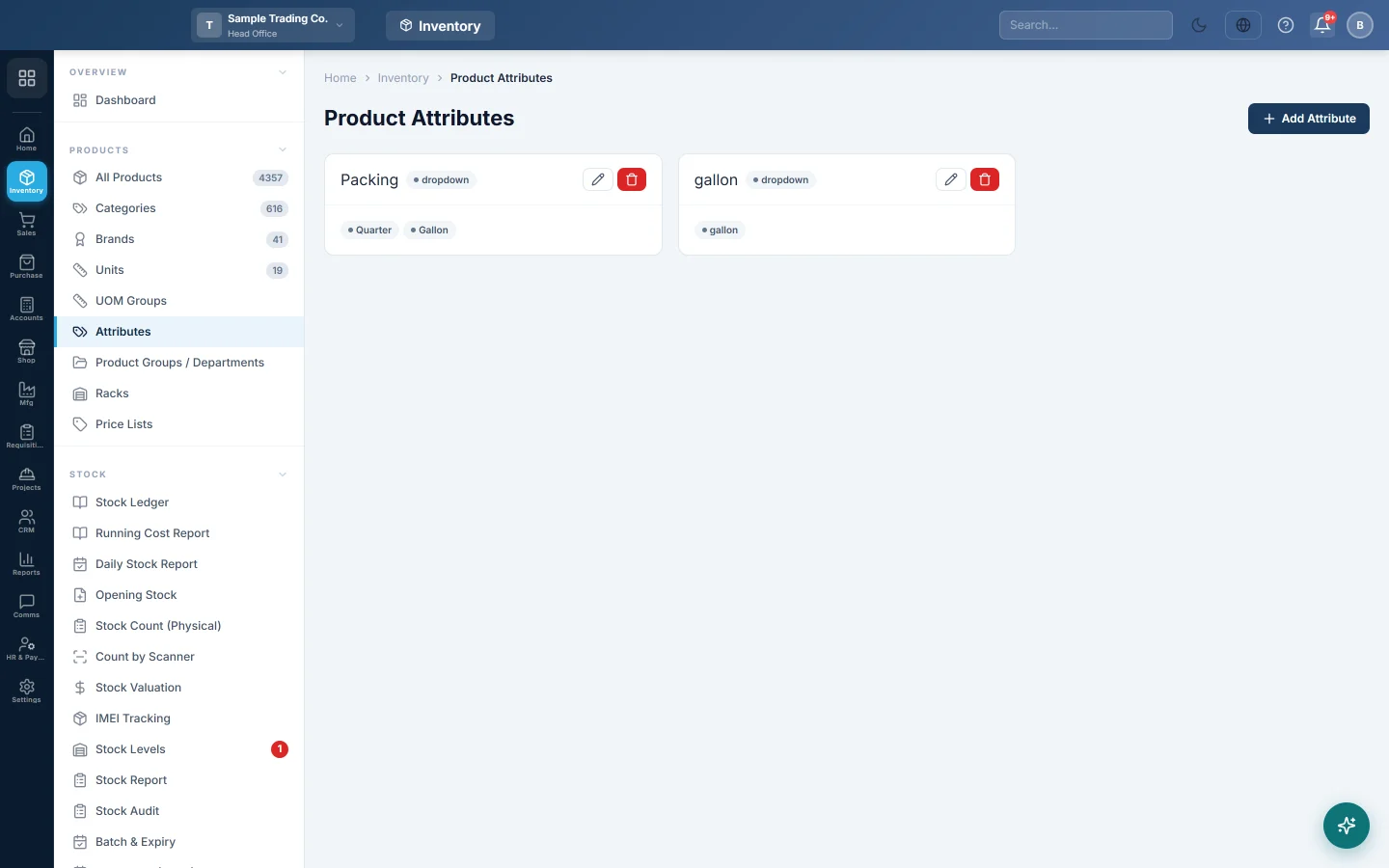
Open Inventory → Products → Attributes. The page is titled Product Attributes.
Each attribute is a card with its name, its display type and its values. Colour values show their colour.
Create an attribute
- Click Add Attribute.
- Type the Attribute Name, for example Size.
- Choose the Display Type: Dropdown, Radio Buttons, Checkboxes or Color Swatches. The type shows on the attribute's card; choose Color Swatches to give each value a colour.
- Under Attribute Values, type the first value, for example Small.
- Click Add Value for each further value.
- For Color Swatches, pick the colour next to each value.
- Click Create.
Empty value rows are left out when you save.
Edit an attribute
- Click the pencil button on the attribute's card.
- Change the name or display type, edit values, add values with Add Value, or remove a value with its bin button.
- Click Update.
Use attributes on a product
- Open the product form from All Products.
- Set Product Type to Product with Variants.
- Under Select Attributes to Generate Variants, pick the attributes and values.
- Click Generate All Combinations. One row appears per variant.
- Fill in each variant's SKU, Barcode, Cost Price and Sale Price, or use Apply Base Prices to All.
- Save the product.
Delete an attribute
- Click the red bin button on the card.
- Click OK to confirm.
An attribute that still has values cannot be deleted, and neither can one used by product variants. To delete an unused attribute, edit it, remove all its values, click Update, then delete it.
Common questions
Why does delete say the attribute has values? EloERP refuses to delete an attribute while it has values, in case they are on products. Remove the values first, as described above.
Does the display type change how variants are picked on invoices? No. On sales and purchase screens you pick the variant itself. The display type is a label on the attribute, and Color Swatches adds a colour to each value.
Can I add a value later? Yes. Edit the attribute and click Add Value. Then open each product that needs it and generate the new variants.
How many attributes can a product have? As many as you pick. Keep it to two or three; each extra attribute multiplies the number of variants.
Terima kasih. Jika masih butuh bantuan, kirim email ke info@eloerp.net.