Add your products
The order to set up categories, brands and units, then add products one by one or import them from a file.
Everything you sell or buy is a product: goods on the shelf, a menu item, a room service or a monthly package. This article shows the order to set things up and the quickest way to get your list in.
Before you begin
- Set up your taxes first, so you can pick a product's tax. See Set up taxes.
- Your company already has a category Uncategorized, a brand Generic and units such as Piece, Kilogram and Dozen. You can start with these and tidy up later.
Where to find it
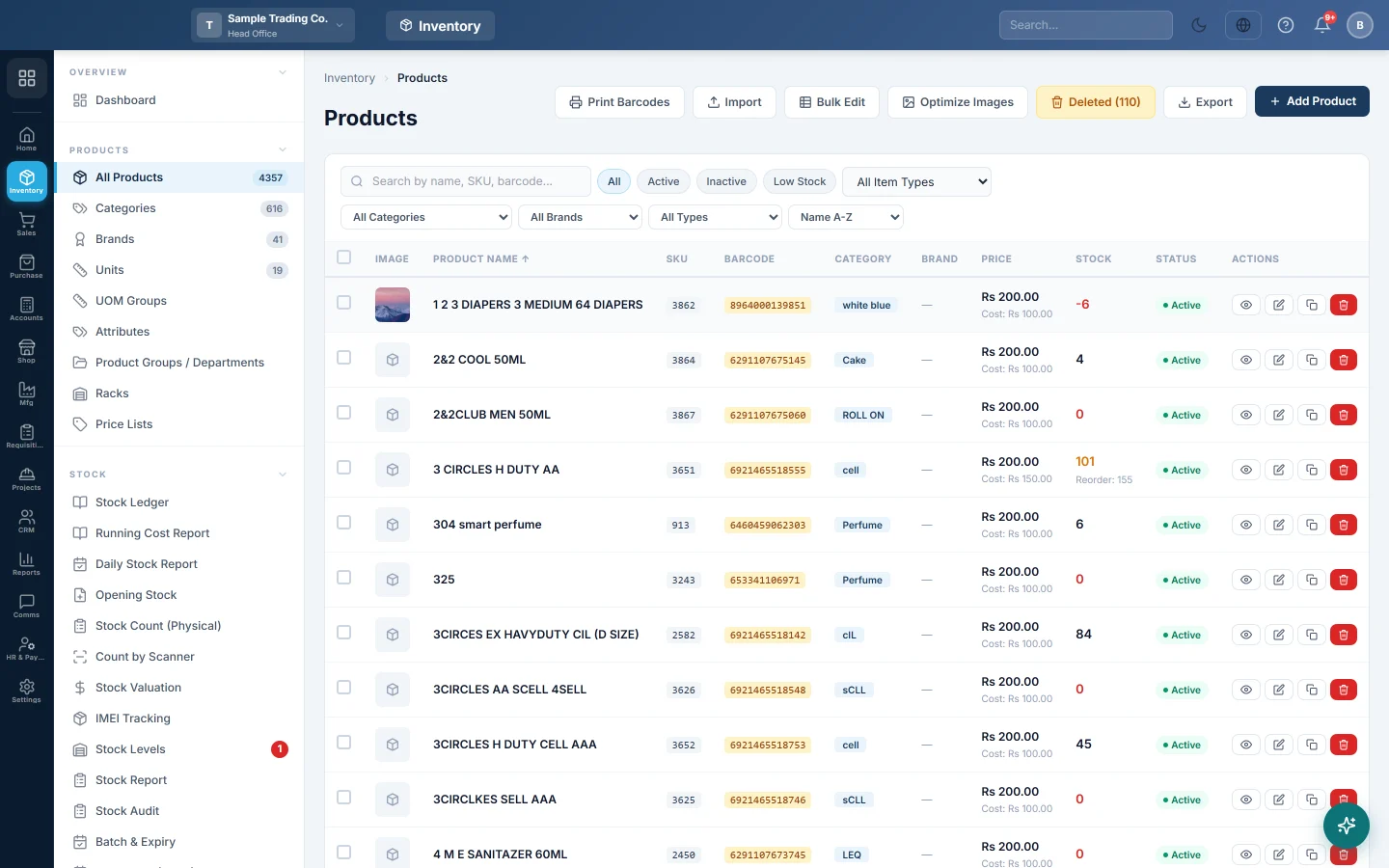
Open Inventory → Products → All Products.
Set up the lists products use
Add these first, so you can pick them on each product. All are in Inventory → Products:
| List | What it is for | Article |
|---|---|---|
| Categories | Groups such as Beverages or Mobile Phones. Used in reports and on the till. | Categories |
| Brands | The maker, for example Ali Traders. | Brands |
| Units | How you count: piece, kg, litre, box. | Units |
| UOM Groups | One product sold in several units, such as piece and carton. | UOM Groups |
| Attributes | Size, colour and other options for variants. | Attributes |
| Product Groups / Departments | A second grouping, such as a department. | Product Groups / Departments |
| Racks | Where an item sits in the store. | Racks |
| Price Lists | Different prices for different customers. | Price Lists |
You can also add a category, brand or unit from inside the product form with the + button next to each list.
Add a product
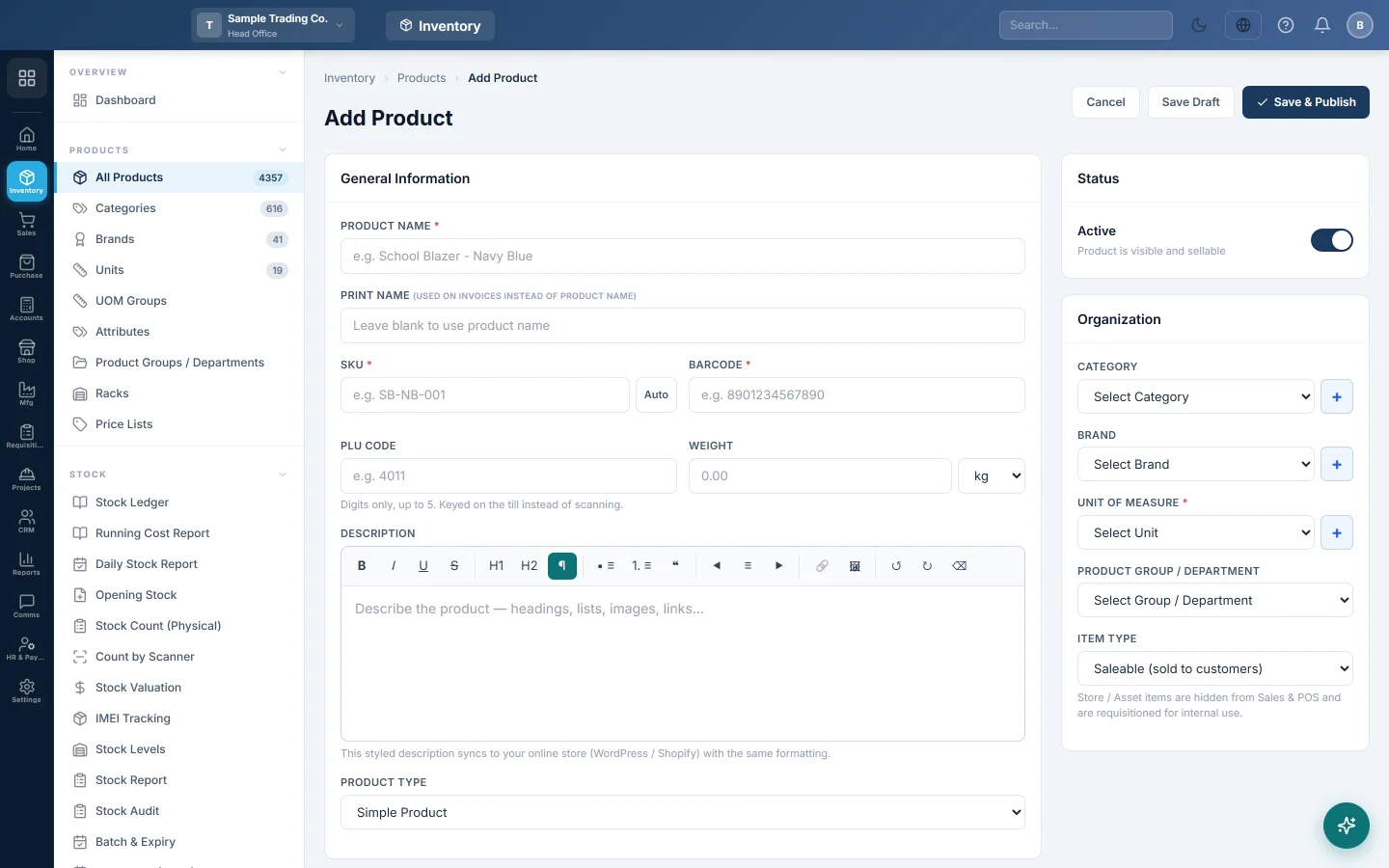
- Click Add Product.
- Type the Product Name. The SKU and Barcode fill in by themselves; type your own if the item already has a barcode.
- Choose the Product Type: Simple Product, Multi UOM Product, Product with Variants or Service.
- Under Pricing, enter the Cost Price and Sale Price. Pick a Tax if this product has its own rate.
- Under Organization, pick the Category, Brand and Unit of Measure. The unit is required.
- Leave Item Type on Saleable (sold to customers) for things you sell.
- Under Stock Management, set a Reorder Level if you want a low-stock alert.
- Click Save & Publish. Save Draft keeps it hidden from sales until you publish it.
Add many products at once
- On the product list, click Import.
- Click Download CSV Template and fill one row per product.
- Click Upload CSV File, choose your file and click Import.
- Fix any rows listed under Errors: and import them again.
After your products are in
- Enter what you already have on the shelf: Enter opening stock.
- Print barcode labels: Print Barcodes.
- Learn every field on the form: All Products.
Common questions
What is the difference between Item Type and Product Type? Product Type is how the item is built: one unit, several units, variants or a service. Item Type is what you do with it: sell it, use it inside the business, or keep it as a fixed asset.
Should I use Opening Stock on the product form? It is fine for a few simple products; the quantity goes to the first warehouse of your branch. For many products, several warehouses, batches or serial numbers, use the Opening Stock screen. See Enter opening stock.
Why can I not sell a product? Check that it is Active, not a draft, and that its Item Type is Saleable. Store and asset items are hidden from sales and the till.
Can I copy a product? Yes. In the list, click the Duplicate as Draft button in the product's row, then change the name and prices.
شكرًا لك. إذا كنت لا تزال بحاجة إلى مساعدة، راسلنا على info@eloerp.net.