Find your way around
The top bar, the module rail, the side menu and the dashboard, and what each is for.
Every screen in EloERP has the same frame: a top bar across the page, a module rail on the far left, the side menu of the module you are in, and the page itself in the middle. Once you know these four, you can reach anything.
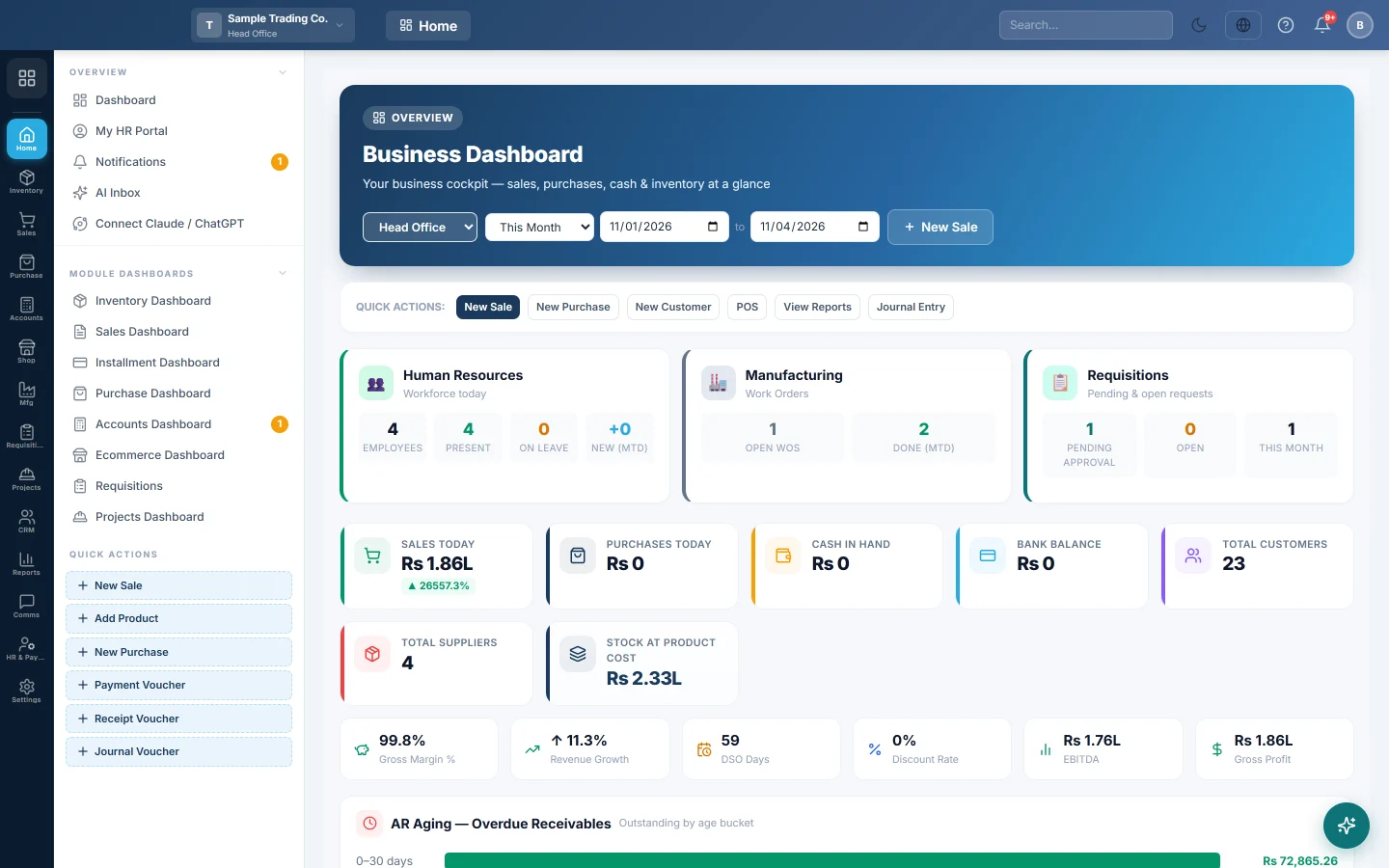
The top bar
From left to right:
| Part | What it does |
|---|---|
| Company and branch | Shows which company and branch you are working in. Click it to switch to another branch you have access to. Everything you enter is recorded in the branch shown here. |
| Current module | The name of the module you are in. |
| Search | Type a product, customer, invoice number or page name and press Enter. |
| Light / dark | Switches the screen between a light and a dark theme. The choice is remembered on this computer. |
| Language | Changes the language of the screens. Arabic also turns the layout right-to-left. |
| Bell | Your notifications: approvals waiting for you, alerts you subscribed to and messages from the system. The number shows how many are unread. |
| Your initials | Your profile, your HR portal, settings and Sign out. |
The module rail
The narrow column of icons on the left lists the modules your company uses: Inventory, Sales, Purchases, Accounting, HR and so on. Hover over an icon to see its name; click it to open that module. You only see the modules your company has and your role is allowed to open.
The side menu
Next to the rail is the menu of the module you opened, grouped into sections. Sales, for example, has sections for documents (quotations, orders, invoices, returns), customers and reports. The page you are on is highlighted.
Some sections also have quick actions at the bottom, such as New Sale or Add Product, for the things people do most often.
The dashboard
The first page after you sign in is the dashboard: today's sales, purchases, cash and bank, stock alerts and the latest documents. Each module also has its own dashboard, the first item in its side menu. For what the cash and bank cards add up, see Cash in Hand and Bank Balance on the dashboard.
Common questions
I cannot see a module my colleague has. Modules are shown by your role's permissions. Ask your administrator to give your role access under Settings → Users & Roles.
The screens are in the wrong language. Use the language button in the top bar. Your choice is saved to your user, so it follows you to other computers.
I entered something in the wrong branch. Cancel the document in that branch, switch branch in the top bar and enter it again. Stock and accounts follow the branch of each document.
Gracias. Si todavía necesita ayuda, escriba a info@eloerp.net.